




Key Takeaways
- The camera control button provides direct hardware access to essential camera functions.
- Using the button on devices like the iPhone 16 and iPhone 17 enhances your shooting experience.
- Mastering the camera control button enables faster photo and video capture.
- Physical camera controls help achieve steadier shots and reduce missed moments.
Table of Contents
- What the Camera Control Button Actually Does (And Why It's a Big Deal Now)
- Camera Control Buttons 101 – From Pro Cameras to Phones
- Where to Find the Camera Control Button (And What It Can Control)
- How to Use the Camera Control Button Like a Pro (Even If You're Not One)
- Customizing Camera Control Buttons for Your Style
- Camera Control Buttons for Video: Start, Stop, Nail the Shot
- Ergonomics 101 – Why the Right Case Matters for the Camera Control Button
- Protection Without Drama – Keeping Camera Control Buttons Safe
Camera Control Button: The Complete Guide to Smarter Shooting
The camera control button transforms how you capture photos and videos, giving you dedicated hardware access to your camera's most essential functions. Whether you're using the new button on iPhone 16 and iPhone 17 or working with traditional camera controls, mastering this physical interface means faster shots, steadier hands, and fewer missed moments.
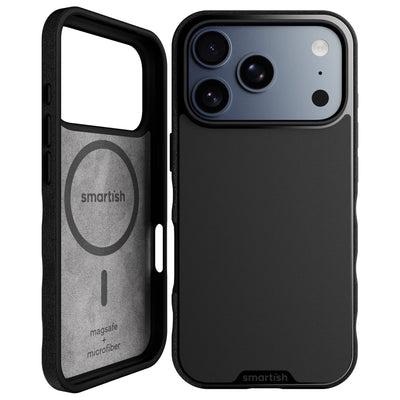
If you want to maximize the benefits of the camera control button on your iPhone 16, consider using a Gripmunk - Slim Case for iPhone 16 for a slim, protective fit that doesn't interfere with button access. For those with the larger model, the Gripmunk - Slim Case for iPhone 16 Plus offers the same easy-to-press button cutouts and secure grip.
What the Camera Control Button Actually Does (And Why It's a Big Deal Now)
- Launches camera instantly from any screen state
- Provides tactile control for focus, zoom, and capture without screen interaction
- Enables one-handed shooting with better stability than touch controls
A camera control button is dedicated hardware that gives you direct access to your camera's core functions without navigating touchscreen menus. On newer phones like iPhone 16 and iPhone 17, this button revolutionizes mobile photography by bringing professional camera ergonomics to smartphones.
The button's placement on the side rail creates a natural grip point that mimics traditional camera design. Unlike tapping your screen, physical button control keeps your hands steady and your composition locked while you capture the shot.
Key Functions
- Instant launch: Opens camera from lock screen or any app
- Focus control: Half-press behavior for precise focus before capture
- Quick modes: Long press for video recording or mode switching
- Zoom and scroll: Touch-sensitive controls for feature navigation
Why It Matters
- Speed: Cuts "pocket to photo" time from 3-4 seconds to under 1 second
- Stability: Physical button press creates less camera shake than screen taps
- Reliability: Works with gloves, in bright sunlight, and during motion
Camera Control Buttons 101 – From Pro Cameras to Phones

Classic Camera Control Buttons on Dedicated Cameras
Professional cameras have used dedicated shutter buttons for decades, with a two-stage design that separates focus from capture. Half-pressing activates autofocus and exposure metering, while full pressure triggers the shot. This separation gives photographers precise control over timing and composition.
Beyond the shutter, pro cameras feature multiple control points: AF-ON buttons for back-button focus, AE-L/AF-L for exposure and focus lock, mode dials for shooting settings, and customizable function buttons for quick access to frequently used features.
Lens and Body Controls Working Together
Camera bodies handle capture timing and settings through buttons and dials, while lenses contribute AF/MF switches, image stabilization controls, and focus hold buttons. This division creates a comprehensive control system where each hand manages different aspects of the shot.
Sports photographers exemplify this workflow: thumb on AF-ON for continuous focus tracking, index finger hovering over the shutter for capture timing, and lens-mounted focus hold button accessible for strategic focus pausing during action sequences.
Phone Camera Control Buttons vs Pro Camera Controls
| Feature | Phone Camera Button | DSLR/Mirrorless Controls |
|---|---|---|
| Focus Behavior | Touch-sensitive with instant focus | Precise half-press with focus confirmation |
| Speed | Immediate app launch and capture | Always ready, multiple control points |
| Ergonomics | Side-mounted for one-hand use | Top-plate positioned for two-hand grip |
| Customization | Limited but growing functionality | Extensive button mapping options |
Smartphones borrow proven concepts from professional cameras while adapting them for mobile use. You get the speed and tactile feedback of dedicated controls without the complexity of extensive button layouts.
Where to Find the Camera Control Button (And What It Can Control)
Button Placement and Feel Across Devices
Modern phones position the camera control button on the right side rail, typically below the power button but above the volume controls. This placement creates a natural index finger rest when holding the phone in landscape orientation, mimicking traditional camera ergonomics.
The button's tactile feedback varies by device, but quality implementations provide distinct click response without mushiness. Cases should maintain this tactile clarity while protecting the surrounding frame from impact damage. If you want a case that preserves the natural feel of the camera control button, the Gripmunk - Slim Case for iPhone 17 is designed for optimal button access and comfort.
Default Actions You Can Trigger
- Single press: Launch camera app or capture photo when camera is active
- Long press: Start video recording or quick-launch from lock screen
- Touch and slide: Zoom control and feature scrolling on supported devices
- Press combinations: Double-tap for front/rear camera switching
iPhone 16 and iPhone 17 users get complete camera control through the dedicated button, enabling zooming, feature scrolling, and photo capture with a single hardware interface. The camera control button eliminates menu diving when you need to adjust settings quickly.
On-Screen vs Physical Camera Button
| Criteria | Physical Button | On-Screen Shutter |
|---|---|---|
| Speed | Instant access, muscle memory | Requires visual targeting |
| Stability | Minimal phone movement | Screen tap can cause shake |
| One-Hand Use | Natural thumb/finger reach | Difficult on large screens |
| Glove Compatibility | Works with most gloves | Requires touchscreen-compatible tips |
Physical buttons excel during movement, low light, and single-handed operation. On-screen controls work better for precise framing with tripods or when using advanced camera modes that benefit from larger touch targets.
For more insights on how the iPhone 17 camera hardware and controls are evolving, check out the iphone 17 (blog) for the latest updates and tips.
How to Use the Camera Control Button Like a Pro (Even If You're Not One)
Faster, Sharper Everyday Photos
- Stabilize first: Bring your phone to shooting position before pressing the button
- Gentle pressure: Press deliberately rather than jabbing to minimize camera shake
- Burst technique: Hold the button for rapid-fire shots when capturing moving subjects
- Follow through: Keep the phone steady for a half-second after capture
Button technique directly impacts image sharpness. A controlled press creates less vibration than screen tapping, especially on larger phones where reaching the on-screen shutter can destabilize your grip.
One-Hand Shooting Basics
- Grip foundation: Use textured case sides and finger grooves to lock your hold before reaching for the camera control button
- Thumb positioning: Angle your wrist slightly inward so your thumb naturally lands on the button cutout
- Portrait orientation: Switch to index finger control when shooting tall subjects to avoid thumb stretching
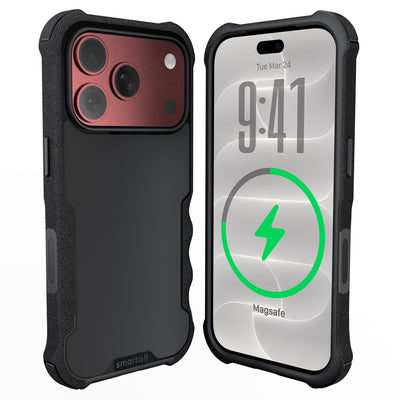
One-handed photography requires a secure foundation. Cases with pronounced grip features prevent the phone from shifting when you press side-mounted camera controls, maintaining your composition throughout the capture. For those who want extra grip and protection, Gripzilla with MagSafe® - Armor Case for iPhone 15 offers a rugged option with tactile button access.
Volume Buttons and Remote-Style Control
Volume buttons serve as alternate camera controls on most smartphones, providing additional physical options beyond dedicated camera buttons. This redundancy proves valuable when your primary button position feels awkward for specific shots.
Remote shooting scenarios where volume controls shine include overhead crowd shots, low-angle compositions, and tripod work where touching the screen would introduce shake. Practice 10-15 consecutive shots using only physical controls to build reliable muscle memory for high-pressure moments.
For a deeper dive into the iPhone 17 Pro's camera features and how to get the most out of your hardware buttons, read the iphone 17 pro camera (blog) for expert tips and tricks.
Customizing Camera Control Buttons for Your Style

Custom Buttons on Dedicated Cameras
Professional cameras offer extensive button customization through function (Fn) and custom (C1/C2) button mapping. High-value assignments include ISO adjustment, white balance switching, and autofocus mode toggling – settings you change frequently but don't want buried in menus.
Beginners benefit most from mapping one button to ISO control and another to autofocus mode switching. These two assignments handle the majority of quick adjustments needed in changing light and subject conditions.
Back Button Focus (AF-ON) vs Shutter Focus
When to Use Each Method
- AF-ON: Action photography, portraits, any scenario requiring focus tracking
- Shutter focus: Static subjects, landscapes, casual shooting
Back button focus separates focusing from capture by assigning autofocus to a rear button instead of the shutter. Setup involves disabling AF on the shutter button and mapping continuous autofocus to the AF-ON button. This configuration prevents accidental refocusing when you're ready to shoot.
The technique excels in portrait and action work where you want to lock focus on your subject and recompose without losing focus point. Practice tracking a walking subject for 30-60 seconds using only AF-ON to develop the muscle memory.
Phone-Level Customization (Where Available)
Smartphone camera control button customization varies by manufacturer but usually includes options like double-tap for quick camera mode switching or long-press for video recording. On iPhone 16 and iPhone 17 models, the dedicated camera control button offers more granular control, you can zoom, scroll through camera features, and snap photos with a single precise cutout that doesn't interfere with your shooting flow.
Here are three practical setups that work well:
- Content creator setup: Long press launches video mode, double press flips to selfie camera
- Parent mode: Single press opens Photo mode with Live Photos enabled for capturing kid chaos
- Street photography: Assign quick access to Portrait mode or Night mode based on your most common shooting conditions
The key is picking 2-3 functions you actually use daily rather than mapping every possible option.
If you want a case that supports customization and easy access to your camera control button, Gripmunk - Slim Case for iPhone 17 Pro is a great choice for iPhone 17 Pro users.
Camera Control Buttons for Video: Start, Stop, Nail the Shot
Recording With Physical Controls
Physical camera control buttons excel at video work because they eliminate the screen-tap shake that ruins the first second of footage. Use the button to start and stop recording, trigger Cinematic mode (where available), or lock exposure and autofocus before you roll.
Here's a timing trick that saves editing headaches: hold your subject in frame for at least 3-5 seconds after pressing stop. This prevents those abrupt cut-off endings that happen when you're too quick on the button.
Real-World Video Scenarios
Different shooting situations call for different button strategies:
- Travel vlogging: One-press recording while walking, using grippy case sides for stability during movement
- Family events: Quick photo-to-video transitions without diving into menus mid-moment
- Fitness content: Phone on a stand with remote shutter control for hands-free recording
- POV shots: Phone strap plus camera button for activities where your hands are busy
For those who want to keep their phone slim and protected while shooting video, the Gripmunk - Slim Case for iPhone 17 Pro Max is designed to maintain tactile button feedback and easy camera access.
Ergonomics 101 – Why the Right Case Matters for the Camera Control Button
What "Good Button Ergonomics" Feels Like
A well-designed camera control button should sit flush but distinct, easy to find without looking but with a clear tactile click when pressed. The edges around the button need to protect without blocking access, and the case shouldn't force you to press harder than necessary.
Poor ergonomics show up as mushiness instead of crisp clicks, or having to hunt for the button location every time you want to shoot.
How Cases Can Mess Up or Improve Your Camera Button
| Poor Case Design | Thoughtful Case Design |
|---|---|
| Misaligned cutouts requiring harder presses | Precise cutouts that maintain natural button feel |
| Slick sides that make one-handed use risky | Textured, grippy surfaces for secure handling |
| Thick edges that block button access | Reinforced protection without interference |
| No consideration for camera or screen protection | Raised camera ring and screen edges |
How Smartish Cases Are Built Around Camera Control
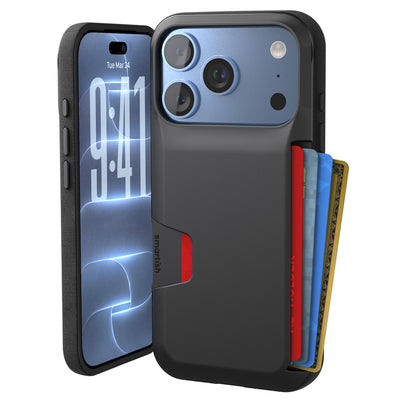
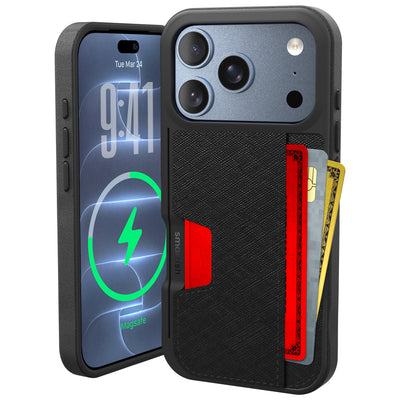
The Wallet Slayer Vol. 2 for iPhone 16 exemplifies thoughtful camera control button design with complete camera control through a precise cutout that enables zooming, scrolling features, and photo capture without interference. The reinforced edges protect your phone's side rails while maintaining full access to the button.
Shared features across Smartish cases enhance camera button usability:
- Textured sides and finger grooves provide steady grip without pocket-grabbing stickiness
- Air-pocket corners absorb impact during active shooting
- Raised camera ring and ~1mm screen edge protect lenses and display when setting the phone down between shots
For a wallet case that doesn't compromise camera control, check out the Wallet Slayer Vol. 2 for easy access and reliable protection.
To learn more about mobile phone photography and camera ergonomics, visit mobile phone photography for a comprehensive overview of the evolution of smartphone cameras.
Protection Without Drama – Keeping Camera Control Buttons Safe

What Can Actually Damage a Camera Control Button
Real-world risks to your camera control button include direct side impacts during drops, repeated pressure from tight pockets or bags, and dust infiltration through exposed button gaps. Since camera controls now live on the phone's frame, reinforced case edges and thoughtful cutouts matter more than ever.
How Smartish Cases Guard the Button
The Wallet Slayer Vol. 2 for iPhone 16 features edge reinforcement around the camera control zone while maintaining precise, easy-to-reach cutout access. Drop-tested air-pocket corners absorb impact before it reaches side buttons, while raised screen edges and camera rings protect glass when you set the phone down face-down or back-down between shooting sessions.
Simple Care Tips That Take 30 Seconds
For additional tips on keeping your phone and camera controls clean, see scrubba dub dub dub (blog) for easy device care routines.
For official Apple guidance on using the camera control button, refer to use the camera control for step-by-step instructions and troubleshooting.
Frequently Asked Questions
What are the main advantages of using the camera control button on devices like the iPhone 16 and iPhone 17?
The camera control button offers instant camera launch, tactile focus control, quick access to video recording, and easy zoom navigation. It speeds up shooting by cutting down the time from pocket to photo and simplifies one-handed operation.
How does the physical camera control button improve stability and reduce missed shots compared to touchscreen controls?
By providing a tactile, physical interface, the camera control button lets you keep a steady grip and lock your composition without fumbling on the screen. This reduces shake and helps capture moments faster and more reliably.
In what ways can the camera control button be customized to fit different shooting styles?
Users can customize the button’s functions like focus, zoom, and mode switching to match their preferred workflow. This flexibility lets both casual shooters and pros tailor controls for faster, smoother photo and video capture.
Why is choosing the right protective case important for maintaining easy access to the camera control button?
A well-designed case offers precise cutouts that keep the camera control button easy to press without adding bulk or interference. This ensures protection without sacrificing quick, reliable access to essential camera functions.