





Key Takeaways
- The lockscreen on iPhone serves as both a security barrier and an information hub.
- It displays essential information such as time, notifications, widgets, and shortcuts.
- The lockscreen has evolved to enhance productivity while maintaining user privacy.
- It allows users to stay connected without needing to unlock their device.
Table of Contents
- Lockscreen on iPhone – What It Is, Why It Matters
- Lockscreen Features & Functions in iOS 17 (and iOS 16–18)
- How to Custom-Tune Your Lockscreen for Maximum Convenience
- Lockscreen Widgets – Selection, Setup, and Productivity Power-Ups
- Practical Guide – Using Lockscreen for Everyday Shortcuts
- Lockscreen Security & Privacy, Managing What's Shared and What Stays Locked
- Advanced Lockscreen Customization, Focus Modes, Multiple Presets, and Automation
- Lockscreen Troubleshooting – Fixes for Widgets, Notifications & Quick Actions
- iPhone Lockscreen vs. Android & Previous iOS Versions
- Best Lockscreen Widgets, Apps & Customization Tools
Lockscreen on iPhone – What It Is, Why It Matters
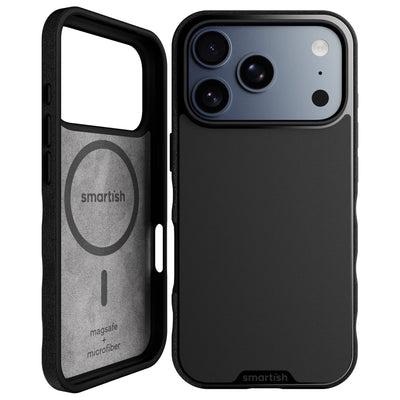
iOS 17 transformed the lockscreen on iPhone from static display to dynamic workspace. The headline feature: customizable widgets that update in real-time, showing weather, calendar events, battery levels, and third-party app data without unlocking your device. For the best experience and to protect your device, check out our picks for iPhone cases that work seamlessly with lockscreen features.
The Dynamic Island (iPhone 14 Pro and later) adds another layer of lockscreen functionality, displaying ongoing activities like music playback, timers, and Live Activities in an interactive format. This means Mommy Blogger can track her Uber pickup while checking school alerts, all from the lockscreen. If you're curious about the evolution of these features, you might enjoy this deep dive into iPhone and case compatibility.
Live Activities deserve special attention, they transform static notifications into dynamic, updating cards. Instead of multiple notification badges for a food delivery, you see one persistent card showing real-time progress from "preparing" to "out for delivery" with estimated arrival times. For those looking to keep their iPhone protected while enjoying these updates, these top-rated cases are a smart choice.
Lockscreen Features & Functions in iOS 17 (and iOS 16–18)
The lockscreen on iPhone has become a hub for quick information and productivity. If you want to stay ahead of the curve, don't miss the latest iPhone 16 rumors and updates that could impact future lockscreen features.
| Feature | iOS 15 | iOS 17+ | Real-World Impact |
|---|---|---|---|
| Widgets | None | Customizable grid | Weather, calendar, fitness at-a-glance |
| Multiple Lockscreens | Single wallpaper | Unlimited presets | Work/personal/travel modes |
| Live Activities | Basic notifications | Dynamic updates | Sports scores, delivery tracking |
| Focus Integration | Limited | Full automation | Auto-switch based on location/time |
The Dynamic Island (iPhone 14 Pro and later) adds another layer of lockscreen functionality, displaying ongoing activities like music playback, timers, and Live Activities in an interactive format. This means Mommy Blogger can track her Uber pickup while checking school alerts, all from the lockscreen.
Live Activities deserve special attention, they transform static notifications into dynamic, updating cards. Instead of multiple notification badges for a food delivery, you see one persistent card showing real-time progress from "preparing" to "out for delivery" with estimated arrival times.
How to Custom-Tune Your Lockscreen for Maximum Convenience
Customizing your iPhone lockscreen starts with a simple tap-and-hold gesture on your current lockscreen. This opens the customization gallery where you can modify existing lockscreens or create new ones from scratch.
Step-by-step customization process:
- Tap and hold your lockscreen until it enters edit mode
- Tap "Customize" or the "+" icon to create new
- Select wallpaper category: Photos, Weather, Astronomy, or Color
- Adjust clock font and color by tapping the time display
- Add widgets by tapping the widget area below the clock
- Configure Focus Mode linking if desired
- Tap "Done" to save your configuration
The two-minute lockscreen makeover focuses on high-impact changes: Choose a photo that works with white text overlay, add 2-3 essential widgets (weather, calendar, battery), and select a readable clock font. This combination provides maximum daily utility without overwhelming the interface.
Pro Setup: Create separate lockscreens for different contexts, minimalist for work meetings, widget-heavy for weekends, travel-focused with boarding passes and weather for trips.
Multiple lockscreen presets shine when linked to Focus Modes. Your "Work" focus can trigger a professional lockscreen with calendar and email widgets, while "Personal" switches to family photos with entertainment and fitness widgets. The automation happens seamlessly based on time, location, or manual activation.
Lockscreen Widgets – Selection, Setup, and Productivity Power-Ups
Lockscreen widgets transform idle screen time into productive glances. The widget system supports both Apple's built-in options and third-party apps, creating a personalized information dashboard that updates without draining battery.
Adding widgets to your lockscreen:
- Enter lockscreen edit mode (tap and hold)
- Tap the widget area below the clock
- Browse available widgets by app
- Select widget size: small circular or rectangular
- Tap to add, then drag to rearrange
- Tap "Done" to save your setup
Choose widgets that deliver real value at a glance, weather, calendar, battery, reminders, or fitness rings. Third-party widgets like package trackers or habit streaks can also boost productivity. Remember, less is more: too many widgets can clutter your lockscreen and reduce clarity.
Practical Guide – Using Lockscreen for Everyday Shortcuts

The lockscreen on iPhone provides instant access to essential functions without unlocking your device. These shortcuts save time and reduce friction during busy moments, whether you're capturing a quick photo or checking transit passes. For more on optimizing your iPhone experience, see our guide to the best iPhone cases that keep your device protected and accessible.
| Shortcut | Access Method | Time to Launch | Common Use Case |
|---|---|---|---|
| Camera | Swipe left or tap camera icon | Under 2 seconds | Capturing moments with kids |
| Flashlight | Tap flashlight icon | Instant | Finding keys in dark |
| Control Center | Swipe down from upper right | 1 second | Adjusting brightness, Wi-Fi |
| Digital Wallet | Double-tap side button | 2-3 seconds | Transit passes, payment cards |
Camera access deserves special attention for its speed and versatility. The lockscreen camera launches in photo mode but provides access to video, portrait, and other modes through the interface. For On-the-go Owen chasing toddler moments, this eliminates the unlock-find-app-launch sequence that often means missing the shot.
Media controls appear automatically when audio is playing, showing track information, playback controls, and AirPlay options. Tech Enthusiast Ted can adjust his workout playlist volume or skip tracks during runs without unlocking his device or fumbling through apps.
Lockscreen Security & Privacy, Managing What's Shared and What Stays Locked
Your iPhone lockscreen balances convenience with privacy through granular notification and widget controls. The system lets you preview information without exposing sensitive content, but proper configuration ensures private data stays private. For more details on customizing privacy settings, see Apple's official guide on how to create a custom lock screen.
Managing notification privacy: Navigate to Settings > Notifications > Show Previews and choose "When Unlocked" to hide message content on the lockscreen while still showing sender names and app badges. This setting protects Mommy Blogger's family texts from prying eyes while maintaining awareness of incoming communications.
Widget privacy requires individual app attention. Calendar widgets can show event titles or just "Busy" indicators. Weather widgets display location-based data that might reveal your whereabouts. Banking and health apps typically require unlocking before showing sensitive information, but verify these settings match your comfort level.
Private Mode Setup: Enable "When Unlocked" for notification previews, review widget permissions individually, and use Focus Modes to automatically hide work notifications during personal time.
Face ID and Touch ID provide secure authentication while maintaining quick access. These biometric systems work through quality cases with precise cutouts, ensuring your security features function properly while protecting your device from drops and daily wear.
Advanced Lockscreen Customization, Focus Modes, Multiple Presets, and Automation
Focus Modes transform your lockscreen on iPhone from static display to context-aware interface. Each Focus Mode can trigger different lockscreen layouts, widgets, and notification settings based on your current activity or location.
Setting up Focus-linked lockscreens:
- Create your lockscreen variations first (work, personal, travel)
- Navigate to Settings > Focus
- Select or create a Focus Mode
- Tap "Customize Screens" and link your preferred lockscreen
- Configure automation triggers (time, location, app usage)
- Test transitions to ensure smooth switching
Automation through the Shortcuts app adds sophisticated triggers. Your "Work" Focus can activate when you arrive at the office, switching to a professional lockscreen with calendar and email widgets while hiding personal notifications. The "Sleep" Focus dims the display and shows only essential information like alarms and emergency contacts. For a look at what's coming next, check out the latest on iPhone 17 charger updates and how they might impact lockscreen features.
Lockscreen Troubleshooting – Fixes for Widgets, Notifications & Quick Actions

When your lockscreen on iPhone starts acting up, most issues stem from permission conflicts or outdated settings. Here's how to diagnose and fix the most common problems in under five minutes.
Widget Problems & Solutions
Blank weather widgets typically mean location services got disabled. Navigate to Settings > Privacy & Security > Location Services, find your weather app, and select "While Using App" or "Always." The widget should refresh within 30 seconds.
For slow-updating widgets, force-close the parent app and reopen it. If that doesn't work, remove the widget by tapping and holding the lockscreen, selecting "Customize," then the minus button on the problematic widget. Re-add it through the same menu.
Quick Widget Reset: Remove widget → restart iPhone → re-add widget. This clears cached data that often causes display issues.
Notification Display Issues
Missing notifications usually trace back to Focus Mode conflicts. Check Settings > Focus and ensure your current mode allows the apps you want to see. Toggle "Time Sensitive" notifications on for urgent alerts that should break through any Focus setting.
If notifications appear but lack detail, go to Settings > Notifications > Show Previews and select "When Unlocked" for privacy or "Always" for convenience. This affects what content appears on your lockscreen without unlocking.
Camera & Flashlight Shortcuts Not Working
Unresponsive camera or flashlight buttons often indicate hardware conflicts. Try a force restart: hold Volume Up, quickly press Volume Down, then hold the Side button until the screen goes black and restarts.
If shortcuts work but launch slowly, clear background apps that might be using the camera or flashlight. Double-tap the home indicator, swipe up on apps to close them, then test the shortcuts again.
| Issue | Symptom | Solution | Fix Time |
|---|---|---|---|
| Widget blank/missing | Empty widget space | Check location services, restart app | 1-2 minutes |
| Notifications hidden | No alerts showing | Review Focus Mode settings | 30 seconds |
| Slow camera launch | 3+ second delay | Close background apps | 15 seconds |
| Face ID not working | Prompts for passcode | Clean camera, re-scan face | 2-3 minutes |
iPhone Lockscreen vs. Android & Previous iOS Versions
The lockscreen on iPhone has evolved dramatically since iOS 16, now rivaling Android's customization while maintaining superior security integration. Here's how current iPhone lockscreens stack up against the competition and their own history. For a closer look at how Apple and Android compare, see this analysis of iPhone 14 rumors and what they mean for lockscreen innovation.
iPhone vs. Android Lockscreen Features
Android offers more widget variety and placement freedom, but iPhone's lockscreen widgets integrate more seamlessly with system functions. Android users can place widgets anywhere on the lockscreen, while iPhone limits widgets to specific zones but ensures better performance and battery life.
Security-wise, Face ID on iPhone consistently outperforms Android's face unlock systems in both speed and accuracy. Android's fingerprint sensors work well but lack the seamless integration iPhone achieves between biometric unlock and app authentication.
iOS Evolution: 15 to 17 and Beyond
iOS 15 lockscreens were purely functional, notifications, time, and basic controls. iOS 16 introduced customizable wallpapers and widgets, while iOS 17 added Interactive Widgets that respond to taps without unlocking your phone. For more official details, see Apple's resource on turning on lock screen features.
The iPhone 17 will likely expand lockscreen functionality further, with rumors suggesting always-on displays for all models and enhanced widget interactivity. Current iOS 17 users already benefit from Live Activities that show real-time updates for deliveries, sports scores, and ride-sharing.
iOS 17 Advantage: Interactive widgets let you check off reminders, control music, and toggle smart home devices directly from the lockscreen, no unlocking required.
Face ID vs. Touch ID at the Lockscreen
Face ID unlocks in 0.3 seconds on average, while Touch ID takes 0.5-0.7 seconds. Face ID works better with Smartish cases since it doesn't require finger placement, just a clear view of your face. Touch ID models need precise finger positioning, which can be tricky with thicker protective cases.
For lockscreen convenience, Face ID wins because it works while your phone sits flat on a desk or in a car mount. Touch ID requires picking up the device, making it less ideal for quick glances at widgets or notifications.
Best Lockscreen Widgets, Apps & Customization Tools
The right widgets transform your lockscreen from a basic barrier into a productivity dashboard. These top picks balance functionality with battery efficiency.
- Weather: Apple Weather, Carrot Weather
- Calendar: Fantastical, Apple Calendar
- Reminders & To-Dos: Things 3, Apple Reminders
- Fitness: Activity Rings, Streaks
- Battery: Apple Battery, Battery Widget & Usage Monitor
- Package Tracking: Parcel, Deliveries
- Custom Shortcuts: Apple Shortcuts app
For more tips and the latest on iPhone lockscreen customization, check out Our Thoughts.
Frequently Asked Questions
What new features does the iPhone lockscreen offer in iOS 17 compared to previous versions?
iOS 17 introduces customizable lockscreen widgets that update in real-time, showing info like weather, calendar events, and battery levels without unlocking your device. It also supports multiple lockscreen presets, Focus mode integration, and automation for shortcuts, making the lockscreen a dynamic productivity hub.
How can I customize multiple lockscreen presets and integrate Focus modes on my iPhone?
You can create several lockscreen presets with different wallpapers and widget setups, then link each to a specific Focus mode. This lets your iPhone automatically switch lockscreen layouts based on your activity, keeping notifications and shortcuts tailored to your current needs.
What are Live Activities on the iPhone lockscreen and how do they improve notification management?
Live Activities turn static notifications into dynamic, updating cards that show real-time progress, like food delivery status or ride arrivals. This reduces clutter by replacing multiple notification badges with one persistent, interactive update right on your lockscreen.
How does the Dynamic Island on iPhone 14 Pro and later enhance lockscreen functionality?
Dynamic Island displays ongoing activities such as music playback, timers, and Live Activities in an interactive format at the top of the screen. It provides quick access to real-time info without unlocking the device, adding a new layer of convenience and multitasking to the lockscreen experience.