




How to prepare your phone for trade-in
How to prepare your phone for trade-in starts with protecting the stuff you can’t replace: photos, contacts, messages, notes, and account access. Make a fresh backup first, then confirm it finished. A backup that’s “probably done” is just optimism wearing a tiny hat.
Key Takeaways
- Start the trade-in process by securing your irreplaceable data like photos, contacts, and personal messages.
- Always double-check that your backup completed successfully before moving forward with the trade-in.
- Don't just assume your backup worked, since a quick verification can save you from losing precious memories and important information.
- Make sure you can still access all your accounts from another device after the phone is gone.
Use the same order for iPhone and Android: save your data, disconnect accessories, sign out of accounts, handle your SIM, and reset the phone. Keep your case and Prop Tart - Slim Fit Collapsible Loop & Phone Grip on the device while you move it around. Set both aside before the phone changes hands.
Step 1: Digital Prep (Back It Up Before You Pack It Up)
Back up your phone to its cloud service or a computer. Check the latest completion time, then confirm that photos, contacts, messages, files, and authentication apps are included. Unpair watches, earbuds, and vehicles so they connect to your replacement phone instead. Remove payment cards before the factory reset.
How to Back Up iOS and Android Devices Completely
On iPhone, check iCloud Backup and confirm a recent completion time. Review iCloud Photos, Contacts, Messages, Notes, and Drive if you use them. On Android, check Google One or your phone maker’s backup settings, then review Google Photos, Contacts, Messages, and device data. Encrypt a computer backup so saved passwords, health information, and other protected data come along. Open a few photos and contacts from the backup account on another device. That small test can catch a large headache.
Unpair Smartwatches, Bluetooth Earbuds, and Car Stereos
Unpair your watch through its companion app, then remove earbuds, speakers, fitness trackers, and vehicle profiles from the phone’s Bluetooth menu. Delete the old phone from your car’s infotainment system, too. This keeps contact syncing and connections from following the old device around.
Sign Out of Accounts (and Why It Matters)
Sign out of iOS or Google services, messaging apps, email, social platforms, banking apps, password managers, and mobile payment tools. Remove saved cards and transit passes from your mobile wallet. Check work profiles, VPN access, and authenticator apps. Move two-factor authentication codes to your replacement phone or another approved method first. A factory reset removes local files, but it can’t fix an account that still marks the phone as yours.
Step 2: Network & Insurance Prep (SIM Cards and Protection Plans)
A physical SIM is a removable card tied to your cellular line. An eSIM is built into the phone and transfers through carrier instructions. Confirm that your replacement phone can make a call, send a text, and use mobile data before erasing the old one.
Removing Your Physical SIM Card or Transferring an eSIM
- Physical SIM: Power down the phone, eject the tray with a SIM tool, and store the card safely. Don’t mail it with the trade-in.
- eSIM: Transfer the line through your carrier app, phone setup flow, or carrier support. Wait for service to activate before erasing the old device.
- Test the line: Place a call, send a text, check cellular data, and verify voicemail. Wi-Fi alone doesn’t prove the transfer finished.
- Record the device details: Keep the trade-in confirmation, tracking number, IMEI, and carrier account notes until the appraisal is complete.
Canceling or Transferring Device Insurance and Protection Plans
Review coverage through your carrier, manufacturer, retailer, or third-party insurer. Wait until the old phone is accepted before canceling coverage that protects it during shipping. Ask about the effective date, open claims, deductibles, and whether the replacement needs new enrollment.
Keep Prop Tart with your accessories instead of sending it with the phone. The trade-in package should contain only what the instructions request. Small logistics, big relief.
Step 3: The Factory Reset (Wipe Your Data Safely)
Remove personal data before the device leaves your hands. A factory reset deletes local photos, messages, apps, files, saved accounts, and settings. It doesn’t automatically remove ownership locks, so handle those first.
How to Turn Off Activation Lock and Find My
On an iPhone, open Settings, tap your name, choose Find My, then select Find My iPhone and turn it off. Enter your account password when requested. Signing out of the account during the erase process also removes Activation Lock. If the phone is already gone, remove it through your account device list or Find My on another device.
Android phones can have a similar barrier called Factory Reset Protection, or FRP. It ties the device to the Google Account used on it. Remove that account from Settings before resetting, and sign out of any manufacturer account. If FRP remains active, the recipient may see an account verification screen and can’t complete setup. That’s a very expensive way to create a paperweight.
Factory Reset Steps: iOS vs. Android
Use the settings menu rather than relying on a remote erase alone. Keep the phone charged and connected to Wi-Fi while the process runs. When finished, it should display its initial welcome or setup screen. Don’t sign back in to “check one thing.” The reset is the check.
| Device | Before erasing | Reset path | Ready-to-ship result |
|---|---|---|---|
| iPhone | Turn off Find My, sign out of the account, and confirm your backup. | Settings > General > Transfer or Reset iPhone > Erase All Content and Settings | The Hello screen appears, with no account attached. |
| Android | Remove Google and manufacturer accounts, then verify your backup and screen lock details. | Settings > System or General Management > Reset > Factory Data Reset | The welcome screen appears, with no FRP account verification prompt. |
Step 4: Physical Prep (Protect Your Trade-In Payout)
Keep the case and screen protector on until the evaluator, store associate, or shipping instructions require removal. A last-minute drop can turn a clean trade-in into a cracked-screen negotiation. Remove the protection only when you’re ready to inspect, clean, and pack the phone.
Keep Your Case On Until the Exact Moment of Appraisal
A case protects the phone during the five chaotic minutes between the counter and the box. Keep it on while you handle the device, then follow the recipient’s instructions for appraisal and shipping.
How to Clean Your Phone for Better Appraisal Results
Power the phone off, remove the case, and use a dry microfiber cloth to clear fingerprints, dust, and pocket lint. For stubborn smudges, lightly dampen the cloth with water. Never pour liquid onto the phone, spray into a port, or use household glass cleaner. Check the screen, camera lenses, frame, buttons, charging port, and SIM tray. Cleaning helps inspection; it can’t hide a crack, deep scratch, bent frame, swollen battery, or missing component.
Packing and Shipping Your Phone Without Getting Cracked
Photograph the phone from every angle, including the setup screen. Capture the IMEI or serial number before erasing, then keep the trade-in receipt and tracking number. Include a cable or other accessory only if the recipient requests it.
Use the supplied shipping kit when one is provided. Otherwise, cushion the phone in a snug inner box with no room to rattle. Don’t rely on a thin envelope. Seal the package, attach the correct label, and keep the drop-off receipt until the inspection and revised quote period ends.
Case On or Case Off During Shipping?
Pros
- Keeping protection on during handling helps prevent a fresh drop before appraisal.
- Photos and tracking records give you a condition trail.
- Snug cushioning limits movement inside the package.
Cons
- The trade-in company may require the case and screen protector removed for inspection.
- Sending accessories that were not requested can complicate sorting.
- Loose packing can still cause damage, even with a case on the phone.
Step 5: Life After the Trade-In (Old Cases and New Phones)
Sort old accessories into three piles: keep, reuse, and recycle. Some gear can move to a backup phone, while worn-out electronics belong in an electronics recycling program. Not the trash.
What to Do With Old Phone Cases and Accessories
- Keep useful gear: Set aside charging cables, wall adapters, wireless chargers, car mounts, and grips that still work with your replacement device.
- Reuse compatible cases: An older case may protect a backup phone or hand-me-down. Don’t force a poor fit.
- Recycle electronics responsibly: Bring unwanted phones, batteries, chargers, and cables to an electronics recycling program, carrier location, retailer collection point, or local household hazardous-waste event. Follow local rules for lithium-ion batteries.
- Donate selectively: Clean, working accessories can help a family member or community organization. Skip cracked cables, swollen batteries, and gear with damaged plugs.
Outfitting Your New Device (Hello, iPhone 17)
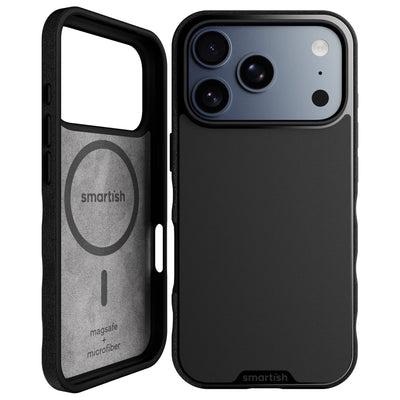
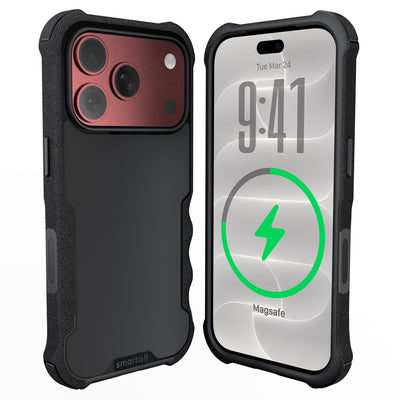
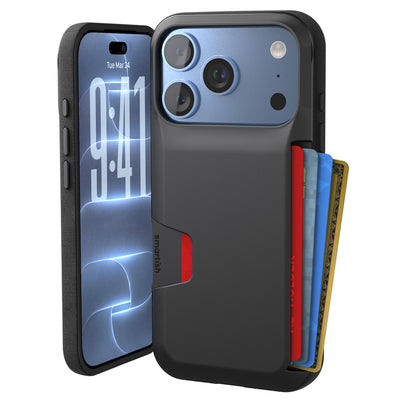
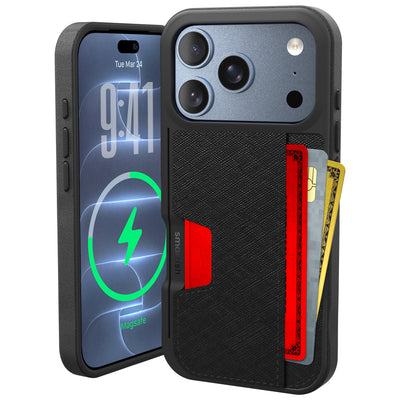
Protect the replacement phone before its first commute, couch drop, or countertop puddle. Confirm the exact model and camera layout before buying a case. A case with a grip can make the phone easier to hold, while raised edges help keep the display off tables. Browse phone cases to find a compatible option.
Keep Prop Tart on your new-device setup list alongside a case, screen protector, charging cable, and trusted power adapter.
Trade-In Rejection Busters: Frequently Asked Questions
Will a cracked screen affect my trade-in value?
Yes. A cracked display may cause a trade-in quote to be revised, and deep scratches, camera damage, bent frames, or a swollen battery can also change the appraisal. Physical condition may reduce trade-in value, according to SellCell’s trade-in research. Keep protection on until the phone reaches the evaluator, and photograph its condition before shipping.
What happens if I leave my screen lock on?
The recipient may be unable to inspect or activate the phone. Remove the screen lock, sign out of the related Apple or Google account, and confirm that Find My, Activation Lock, or Factory Reset Protection is no longer attached. Apple identifies Activation Lock as a trade-in blocker, so a reset alone is not enough.
Do I Keep My Charging Cable and Block?
Usually, yes. Follow the trade-in instructions exactly. Unless the program requests accessories, send the phone by itself and keep your charging cable, power adapter, and case for the replacement device. A working charger is more useful in your home than taking a one-way trip inside a shipping box.
References
Frequently Asked Questions
How do I clear my phone before trading it in?
Clearing your phone before trade-in means signing out of your Apple or Google account, unpairing all Bluetooth accessories, removing payment cards, and then running a full factory reset to wipe local data. Before you erase anything, back up photos, contacts, and messages to the cloud or a computer so nothing important disappears for good.
What disqualifies a phone for trade-in?
Leaving Activation Lock or Find My iPhone enabled is one of the most common reasons a trade-in gets rejected or delayed by carriers. Other issues include failing to sign out of your accounts, shipping a phone still tied to a financed plan, or physical damage that falls outside the carrier's acceptable condition guidelines.
How do I prepare my trade-in device?
Preparing your trade-in device involves four main steps: back up all data to the cloud or computer, unpair watches and earbuds, sign out of every account including messaging and banking apps, then handle your SIM card and protection plan. After confirming your replacement phone has active service, run a factory reset and keep the trade-in tracking number handy.
When you trade in a phone, do they erase everything?
You are responsible for erasing your own phone before handing it over, so do not count on the trade-in program to do it for you. A factory reset handled by you ensures all personal photos, messages, saved passwords, and account details are removed before the device ever leaves your possession.
Does a factory reset delete everything on your phone?
A factory reset deletes local photos, messages, apps, files, saved accounts, and settings stored directly on the device. It does not automatically remove ownership locks like Find My iPhone or Activation Lock, so you must disable those manually before resetting or the next owner cannot set up the phone.
What should I do with my SIM card before trading in my phone?
Remove your physical SIM card by powering down the phone, ejecting the tray with a SIM tool, and storing the card safely before shipping the device. If your phone uses an eSIM, transfer your line to the replacement phone through your carrier app, then verify the new phone can place calls and send texts before erasing the old one.
Should I cancel my phone insurance before trade-in?
Wait until the trade-in is received and accepted before canceling any protection plan, since the policy may still cover the device during shipping. Once the old phone is accepted, review the terms to cancel coverage that no longer applies or transfer the plan to your replacement device if the policy allows it.