



Key Takeaways
- The best desktop accessories help create a seamless and efficient workspace.
- Your phone deserves protection that matches the functionality and reliability of your desktop setup.
- Thoughtful accessory choices enhance both desktop and mobile device usability.
Table of Contents
- Why Desktop Accessories Matter More Than You Think
- Input Devices: Finding Your Perfect Keyboard and Mouse Match
- Monitor Stands and Laptop Raisers: Posture Starts Here
- Cable Management: Making Chaos Disappear
- Ergonomic Supports: Protecting Your Body for the Long Haul
- Lighting: Beyond Ambient, Creating Focused Workspace Light
- Storage and Organization: Keeping Essentials Within Arm's Reach
- Phone Case Accessories: Protection That Works With Your Setup
- Phone Accessories: Complete Your Setup
- Building Your Ideal Workspace Step by Step
- Future-Proofing Your Workspace Investment
- Making the Right Choice for Your Workspace
Why Desktop Accessories Matter More Than You Think
Desktop accessories aren't just nice-to-haves, they're the difference between a workspace that works for you and one that works against you. The right setup handles the friction points you encounter every single day: tangled cables that steal focus, a keyboard that makes your wrist ache after an hour, a monitor positioned so you're constantly craning your neck, or that one cable you can never find when you need it.
Anything that enhances your desktop experience beyond your core computer, monitor, and keyboard qualifies as a desktop accessory. This includes input devices (mice, trackpads), cable organizers, stands, lighting, storage solutions, ergonomic supports, and audio gear. The smart ones solve problems you didn't even realize you had.
The real payoff: Studies show that an optimized workspace can boost focus and reduce fatigue. When your peripherals work with your body instead of against it, when your cables stay put instead of sliding everywhere, you reclaim mental energy for actual work instead of wrestling with your setup. If cable chaos is your biggest pain point, a magnetic cord organizer can make a dramatic difference in keeping your workspace tidy.
Input Devices: Finding Your Perfect Keyboard and Mouse Match

Your keyboard and mouse are the gateway between your brain and your work. Yet most people just use whatever came in the box. That's like accepting the first pillow you grab, technically functional, probably not ideal.
Choosing Your Keyboard Type
Membrane keyboards (the standard rubber-dome variety) are affordable and quiet, making them solid for offices. Mechanical keyboards offer tactile feedback and durability, worth the investment if you spend 6+ hours typing daily. The difference? Mechanical switches last 50–100 million keypresses; membrane domes typically hit 5–10 million. Ergonomic keyboards reduce wrist strain by splitting the layout or angling the keys, genuinely helpful if you've noticed end-of-day wrist discomfort.
Multi-device keyboards level up your efficiency. If you bounce between a desktop, laptop, and tablet throughout the day, wireless keyboards with one-touch device switching eliminate the "which input am I using?" friction.
Mouse Grip Style Actually Matters
Claw grip users (fingers arched, like you're holding an invisible ball) benefit from contoured, smaller mice. Palm grip folks (hand flat across the mouse) need wider, longer designs. Fingertip grip (just your fingertips touching) demands lighter, more responsive mice for quick movements. Gaming or precision work? Look for adjustable DPI settings so you can dial in sensitivity without software tweaks.
Vertical mice reduce pronation strain. Your forearm naturally wants to rest with the palm facing inward (pronated). Standard mice force you to rotate outward. Vertical mice align with your natural resting position, genuinely reducing wrist fatigue over 8+ hour days.
Monitor Stands and Laptop Raisers: Posture Starts Here
Your monitor height is criminally overlooked. The top of your screen should sit at or slightly below eye level when you're sitting naturally. Too low? You're rounding your spine forward. Too high? Neck strain builds fast.
A basic monitor stand isn't just elevation, it's real estate. The space underneath becomes storage for notebooks, small organizers, or a document holder positioned for easy reference while typing. Even a 4–6 inch raise creates usable space while fixing your viewing angle.
Adjustable Stands Offer Flexibility
If you switch between sitting and standing throughout the day, or if multiple people use the same desk, adjustable stands adapt without fussing. Tilt, height, and swivel adjustments take seconds and cost surprisingly little more than fixed stands.
Laptop raisers solve a specific problem. Laptops encourage forward head posture because the screen sits too low. A stand brings the screen to eye level, but then you need an external keyboard and mouse. It's worth it if you dock your laptop for 4+ hours at a time.
Cable Management: Making Chaos Disappear
Cables multiplying on your desk isn't a metaphor, every new device adds more chaos. But here's the thing: cable management isn't about perfection. It's about accessibility and not tripping over your own setup.
Under-desk cable trays keep wires out of sight without sacrificing access. Adhesive-backed or clamp-mounted trays run horizontal beneath your desk surface, holding everything in one organized bundle. When you need to swap a cable, you know exactly where to look instead of fishing behind your desk.
Reusable Cable Organization
Cable ties and wraps should be reusable. Velcro wraps beat zip ties because you can adjust as your setup evolves without destroying your cables. Label them with small tags so you know which cable is which without tracing back. Takes 30 seconds per cable and saves 10 minutes of frustration later.
Desk sleeves bundle cables into one neat bundle. Fabric sleeves that zip around multiple cables turn a nest of wires into a single organized column. Run that column down the back leg of your desk, and clutter drops dramatically. Color-coding accelerates setup and troubleshooting, audio cable is blue, power is red, USB is yellow. For a more streamlined solution, try a cable collar to keep cords together and out of sight.
If you're looking for a comprehensive approach, the Cord Essentials Bundle provides everything you need to tame cable chaos in one package.
Ergonomic Supports: Protecting Your Body for the Long Haul

An aching wrist, sore lower back, or tight neck doesn't just hurt, it kills focus and productivity. Ergonomic accessories prevent problems rather than fixing them after damage builds up.
Wrist Rests Reduce Forearm Strain
Position a wrist rest so your wrists maintain a neutral angle (not bent up or down) while your fingers are on the keyboard. Quality rests use memory foam or gel and have a slight contour matching your wrist's natural shape. They're not pillows, just enough support to prevent the micro-bending that causes pain.
Lumbar support pillows address lower back strain directly. Most office chairs lack proper lumbar support, so your lower back rounds forward under load. A simple inflatable or foam lumbar pillow fills that gap, encouraging your spine into a neutral S-curve. Position it at waist height (not behind your shoulder blades). Pressure relief is immediate; long-term back comfort builds over weeks.
Seat cushions reduce pressure on your tailbone and thighs. Memory foam or gel-based cushions distribute your weight more evenly than a flat chair seat. After 2–3 hours of sitting, pressure buildup creates discomfort and poor posture. A quality cushion keeps you comfortable through a full workday, which means better posture and fewer micro-adjustments that break focus.
Footrests promote circulation and reduce lower back strain. A footrest positioned 6–12 inches below your thighs allows your knees to sit at a 90-degree angle and your feet to rest flat. This small adjustment reduces pressure on your lumbar spine and keeps blood flowing to your legs. Particularly helpful if your desk is slightly too high or if you're on the shorter side.
For more ideas on optimizing your workspace, check out this guide to the best iPhone accessories for productivity and organization.
Lighting: Beyond Ambient, Creating Focused Workspace Light
Lighting affects focus more than most people realize. Poor lighting causes eye strain, which triggers headaches and fatigue. The right light keeps your eyes relaxed and your attention sharp.
Task lamps reduce eye strain during detailed work. Ambient ceiling lights cast shadows across your desk; task lamps eliminate that. Position a task lamp to the side of your monitor (not directly behind, which creates glare). Adjustable brightness is key, you want roughly the same light level as your screen to prevent constant pupil adjustment.
Color temperature matters. Warm light (2700K) feels cozy but can make you drowsy in the afternoon. Neutral white (4000K) supports alertness without feeling harsh. Cool white (5000K+) boosts focus but feels institutional and can disrupt sleep if used in evening work sessions. Match your light temperature to your work type and time of day.
Built-in organizers combine function and form. Some task lamps integrate small organizers for pens, sticky notes, or phone storage. You're not adding desk clutter, you're building it into the light fixture itself. Clever if your desk space is tight.
Storage and Organization: Keeping Essentials Within Arm's Reach
A cluttered desk broadcasts chaos to your brain, whether you consciously notice it or not. Strategic storage keeps everything you actually use accessible while hiding everything else.
Drawer organizers prevent the "junk drawer" problem. Compartmentalized inserts separate pens, cables, sticky notes, and charging blocks into their own zones. You find what you need instantly instead of excavating through layers. Measure your drawer depth before buying, most standard organizers fit 2–4 inch deep spaces.
Magnetic desk organizers adapt as your needs shift. Modular magnetic blocks rearrange into any configuration. Phone stand in the morning, cable holder by afternoon, pen container tomorrow. No tools required; just move the blocks around. Particularly smart if you share a desk or rotate responsibilities.
Vertical storage maximizes limited desk real estate. Wall-mounted shelves or pegboards keep supplies off your desktop while keeping them visible. Bonus: they signal what you use daily versus what can live in a closet. If you're constantly reaching for something, it belongs on that wall.
For a curated selection of desktop solutions, explore these non-phone case accessories designed to keep your workspace organized.
Phone Case Accessories: Protection That Works With Your Setup

Your phone spends half its time on your desk, yet most people ignore how their phone case interacts with their workspace. The right case transforms your phone from desk clutter into a functional part of your setup.
Gripmunk - Slim Protection That Doesn't Bulk Up Your Desk
Best for: People who want reliable protection without adding thickness to their phone or taking up extra desk space.
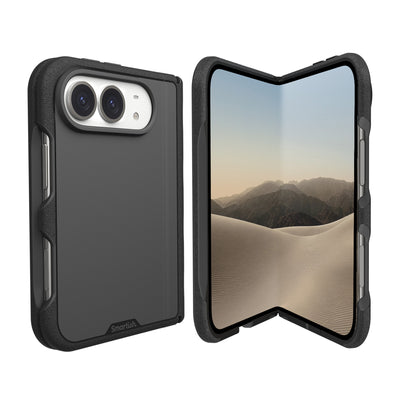
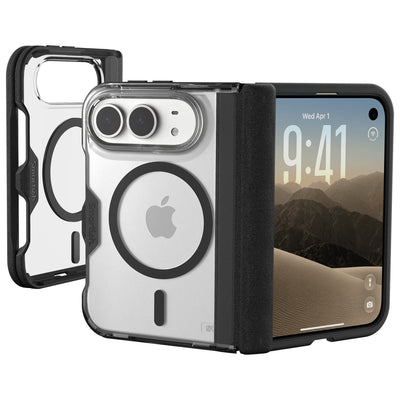
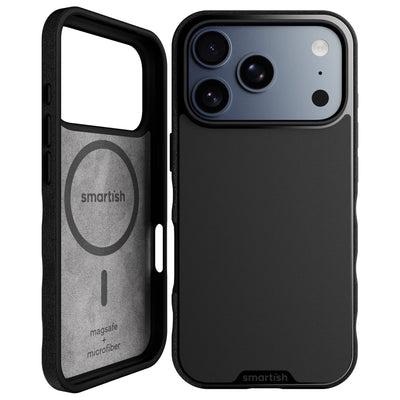
Gripmunk delivers drop-tested protection in a slim profile that works seamlessly with your desktop setup. The air-pocket corners absorb impact while the raised screen edge provides face-down protection when you place your phone on your desk. The raised camera ring protects your lens when the phone sits on its back. MagSafe compatibility means it works with magnetic desk stands and wireless chargers without removing the case.
The finger grooves on the back aren't just for grip, they create a slight angle when your phone lies flat, making it easier to grab without fumbling. That's the kind of detail that eliminates tiny daily friction points.
Gripzilla - Maximum Protection for Active Workspaces
Best for: People with demanding jobs, outdoor work, or anyone who needs robust phone protection without sacrificing desk functionality.
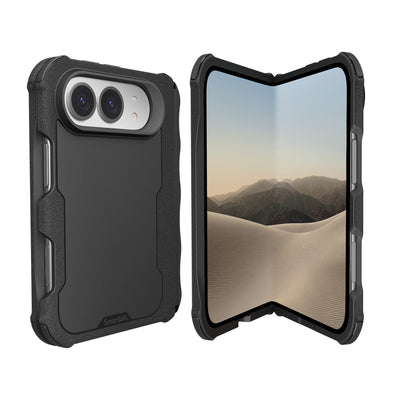
Gripzilla combines a rigid backplate with the same air-pocket corner technology as Gripmunk, but with enhanced drop protection for demanding conditions. The raised screen edge and camera ring provide comprehensive protection whether your phone is face-down on your desk or tossed into a work bag. MagSafe compatibility means you can use magnetic charging stands and accessories without removing the case.
For more on MagSafe compatibility and how it enhances your desktop setup, see this guide to MagSafe charging.
Phone Accessories: Complete Your Setup
Your phone deserves the same thoughtful approach as your desktop. The best desktop accessories create a seamless workspace, and your phone protection should match that standard of functionality and reliability.
Smartish cases integrate perfectly with desktop workflows. The Gripmunk offers slim protection without interfering with wireless charging pads or document cameras. Air-pocket corners absorb impact while maintaining the sleek profile that fits naturally alongside your other premium accessories. The raised screen edge and camera ring provide comprehensive protection whether your phone sits face-down on your desk or gets knocked off during a video call.
Gripzilla handles the demands of active workspaces. If your work involves job sites, outdoor meetings, or frequent travel between locations, Gripzilla delivers the same air-pocket corner technology as Gripmunk, but with enhanced drop protection for demanding conditions. The raised screen edge and camera ring provide comprehensive protection whether your phone is face-down on a rough surface or tossed into a work bag with tools and cables.
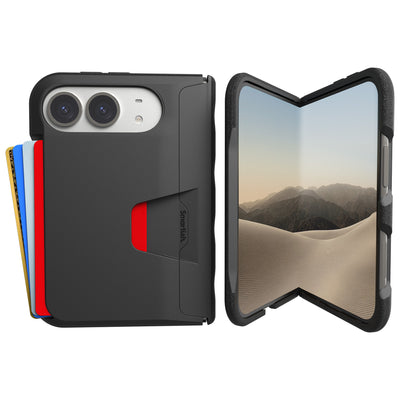
Wallet Slayer Vol. 1 and Vol. 2 eliminate pocket clutter entirely. Instead of juggling a phone, wallet, and keys, your essential cards and cash integrate directly into your phone case. Vol. 2 adds a kickstand for hands-free video calls, particularly useful during long client presentations or training sessions. Both versions maintain precise cutouts for all ports and buttons, so functionality never gets compromised for convenience.
All Smartish cases support MagSafe charging and accessories without adding bulk or reducing protection effectiveness. Your wireless charging pad, car mount, or desktop stand works exactly as intended, while your phone stays protected from the inevitable drops and impacts of daily use. For more recommendations, see the best iPhone MagSafe accessories.
Building Your Ideal Workspace Step by Step
The most effective approach to workspace optimization is systematic, not overwhelming. Start with the friction points that actively interfere with your work, then build toward the refinements that enhance comfort and efficiency.
Foundation first: address posture and input. Your monitor height, keyboard comfort, and mouse precision form the base layer of productivity. These affect every single interaction with your computer, so getting them right pays dividends immediately. A monitor stand, ergonomic keyboard, and properly-sized mouse eliminate the micro-frustrations that compound over 8-hour workdays.
Layer two: organize your environment. Cable management and storage solutions remove visual chaos and improve accessibility. When every cable has a place and every tool has a home, you spend less mental energy managing your environment and more energy on actual work. This is where the best desktop accessories prove their worth, not through flashy features, but through invisible efficiency.
Layer three: optimize for your specific work style. Audio accessories for frequent calls, specialized lighting for detailed work, or premium webcams for client-facing roles. These accessories should match your actual workflow, not an idealized version of how you think you should work.
The 30-day rule: Live with each new accessory for a full month before adding the next one. This prevents over-buying and ensures each addition actually improves your workflow rather than just cluttering your space.
Budget allocation that makes sense: Invest heavily in items you interact with constantly (keyboard, mouse, chair support), moderately in items that solve daily annoyances (cable management, lighting), and minimally in items that address occasional needs (specialized audio gear, premium webcams).
If you're looking for a wide range of solutions, browse universal accessories that can adapt to any workspace.
Future-Proofing Your Workspace Investment

Technology evolves, but fundamental ergonomic and organizational needs remain constant. The best desktop accessories adapt to changing tech while addressing timeless workspace challenges.
USB-C is becoming universal. When replacing cables or hubs, prioritize USB-C connections. Most new devices, laptops, tablets, phones, and peripherals, are standardizing on USB-C for both power and data. Investing in USB-C accessories now prevents obsolescence as older USB-A ports disappear. For more on the future of connectivity, see this explainer from WIRED.
Wireless technology reduces cable dependence. Wireless keyboards, mice, and charging pads eliminate cable runs while maintaining full functionality. This doesn't mean going completely wireless immediately, but considering wireless options when replacing existing accessories reduces future cable management complexity.
Modular systems adapt as needs change. Magnetic organizers, adjustable stands, and reconfigurable storage solutions evolve with your workflow rather than becoming obsolete when your responsibilities shift. These accessories cost slightly more upfront but prevent complete replacement when your needs change.
Quality materials last through multiple tech generations. A well-built monitor stand supports whatever display you buy next. A premium keyboard works with any computer. Ergonomic supports remain effective regardless of which laptop you're using. Investing in build quality rather than brand-specific features creates lasting value. For more tips on workspace longevity, check out Wirecutter's desk accessories guide.
Making the Right Choice for Your Workspace
The best desktop accessories solve problems you encounter daily while staying out of your way. They don't demand attention, they eliminate friction so you can focus on work that actually matters.
Start with what hurts. Physical discomfort from poor ergonomics, frustration from disorganized cables, or eye strain from inadequate lighting. Address your biggest pain point first, then move systematically through the list. This approach delivers immediate relief and builds momentum for further improvements.
Test before committing to expensive accessories. Borrowing, renting, or buying with generous return policies prevents costly mistakes. A keyboard that looks perfect online might feel wrong after 2 hours of typing. A monitor stand that seems appropriate might position your screen too high or too low for comfortable viewing.
Quality over quantity always wins. Five thoughtfully chosen accessories that address real workflow issues outperform fifteen random gadgets that seemed useful online. The goal isn't to own every available accessory, it's to create a workspace that supports your work and style, whether you're using the latest iPhone 17 or your trusty laptop.
Frequently Asked Questions
How do ergonomic keyboards and mice contribute to reducing wrist and hand strain during long work sessions?
Ergonomic keyboards and mice are designed to support natural hand and wrist positions, reducing awkward angles that cause strain. By promoting better posture and comfort, they help prevent fatigue and discomfort during extended use.
What are the benefits of using adjustable monitor stands and laptop raisers for posture and comfort?
Adjustable monitor stands and laptop raisers position your screen at eye level, encouraging a neutral neck and back posture. This reduces strain on your spine and shoulders, making long work sessions more comfortable and productive.
How can cable management accessories improve focus and organization in a desktop workspace?
Cable management accessories keep cords tidy and out of the way, eliminating clutter that can distract and frustrate. A neat workspace helps maintain focus and makes it easier to find and access devices when you need them.
What types of phone case accessories best complement a desktop setup for enhanced protection and usability?
Phone cases with raised screen edges and camera rings offer reliable protection when placed on desks. Wallet-style cases and slim MagSafe-compatible options add functionality without bulk, making it easy to integrate your phone into your desktop routine.