



iPhone battery saving tips 2026
Why Your iPhone Battery Is Draining Faster in 2026
If your phone feels like it’s bleeding power faster than a leaky faucet, you’re not imagining things. Every major iOS update triggers a massive background indexing process where your phone re-organizes photos, messages, and files to work with new system features. This digital spring cleaning usually lasts a few days, during which your device might feel warm and the percentage bar stays in a nosedive. Using iPhone battery saving tips 2026 starts with patience, but if the drain persists past day three, a deeper system setting usually bears the blame.
Key Takeaways
- That post-update battery drain is normal for a couple of days while your phone reorganizes photos and files in the background.
- If your battery keeps dropping past day three, a specific setting is the real culprit, not just the indexing process.
- Start with patience for the first few days, then dig into your system settings if the drain won't stop.
Check your "System Services" under Location Settings immediately after any update. Apple often resets these toggles to "On," meaning your phone is constantly pinging towers for time zones and personalized ads. Users on community forums frequently report that "Significant Locations" and "Analytics & Improvements" are the silent culprits that eat through a full charge before lunchtime. Keeping these in check ensures your hardware focus stays on your actual usage rather than background data harvesting.
"I updated my iPhone last night and lost 20% just sitting on my nightstand. It turns out the new 'Live Activities' for sports I don't even watch was running in the background all night.". Reddit User u/BatteryBlues26
Post-Update Battery Audit
- Wait a few days for system indexing to complete
- Disable "Significant Locations" in Privacy settings
- Turn off "Share iPhone Analytics"
- Check for "phantom" Live Activities on the lock screen
5 iPhone Settings to Tweak Right Now for Serious Battery Savings
Managing your power starts with Background App Refresh. Most apps don’t need to update while you’re sleeping or working. By navigating to Settings and selecting "Wi-Fi Only" or turning it off entirely, you prevent dozens of apps from constantly hunting for new data. This single change can noticeably extend your daily usage because it stops the processor from waking up hundreds of times per day for apps you only open once a week. These iPhone battery saving tips 2026 focus on reducing the constant micro-tasks your phone performs without your knowledge.
Location Services is the next major hog. Many apps demand "Always" access when "While Using" is more than enough for their functionality. Go through your app list and prune these permissions. While you’re there, consider your display settings. ProMotion technology and Always-On Displays look great, but they’re taxing. If you can live without the lock screen clock always being visible, turning off Always-On Display can save a noticeable amount of your daily capacity. For those who need their phone to last through a long commute and a full workday, these small adjustments accumulate into significant gains.
- Limit Background App Refresh: Set to Wi-Fi only or Off for non-essential apps.
- Audit Location Permissions: Change "Always" to "While Using" for everything except maps.
- Disable Always-On Display: Save a noticeable amount of your daily capacity.
- Switch Mail to Fetch: Stop the constant server pings.
- Automate Low Power Mode: Use the Shortcuts app to trigger Low Power Mode automatically when your battery hits 40% rather than 20%.
Busting 3 Myths That Keep Killing Your Battery
The biggest lie in the tech world is that swiping away your apps saves power. In reality, force-closing apps takes more energy because the phone has to reload the entire piece of software from scratch the next time you open it. iOS is designed to "freeze" apps in the background, consuming almost zero resources. Only close an app if it’s frozen or acting up. Otherwise, let the system manage its own memory. This is one of the most misunderstood battery-saving tips because it feels counterintuitive to leave apps open.
Another common misconception is that Dark Mode is a magic cure-all. While Dark Mode does save energy on OLED screens because black pixels are essentially "off," it makes almost no difference on older LCD screens. Even on OLED models, the savings are minimal unless you keep your brightness high. It’s a helpful tool, but it shouldn’t be your only strategy. True efficiency comes from managing the processor, not just the pixels. Additionally, some users believe Low Power Mode is harmless to use 24/7, but it actually pauses important background backups and reduces the responsiveness of your device.
| The Myth | The Reality | Better Practice |
|---|---|---|
| Close all apps to save juice | Reloading apps uses more CPU power | Leave apps in the background switcher |
| Low Power Mode 24/7 is fine | It throttles performance and pauses backups | Use it only when below 50% |
| Dark Mode fixes everything | Only benefits OLED screens at high brightness | Combine with Auto-Brightness for best results |
Why Your Battery Dies Overnight (and How to Stop It)
Waking up to a phone that lost 15% charge while you slept is incredibly frustrating. This usually happens because of "Find My" network pings or iCloud backups that struggle to finish due to a weak Wi-Fi signal. If your phone is hunting for a signal all night, the modem works overtime, generating heat and burning through the cells. Heat is the ultimate enemy of long-term health, so keeping your device cool during these cycles is important for your battery-saving strategy.
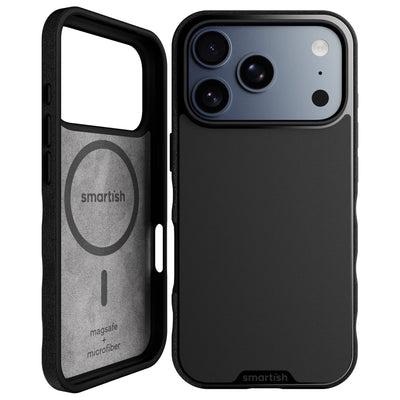
You can solve this by creating a simple "Bedtime" automation in the Shortcuts app. Set your phone to enter Airplane Mode or turn off Cellular Data during your sleep hours. This forces the device into a deep sleep state. Additionally, ensure your phone is not buried under a pillow or heavy bedding while charging. Excessive heat during a charge cycle degrades the lithium-ion chemistry faster than almost anything else. If you use a Gripmunk case, you can easily keep your phone on a nightstand where it stays cool and accessible. For those using newer models, having a reliable wireless magnetic charger can help maintain a steady, safe connection overnight.
Step-by-Step Bedtime Automation
1. Open the Shortcuts app and tap "Automation."
2. Create a "Time of Day" trigger for your bedtime.
3. Add actions to "Set Low Power Mode On" and "Set Bluetooth Off."
4. Create a second automation for your alarm time to turn these settings back to normal.
When Software Fixes Aren't Enough: The Smartish Last-Resort Power Move
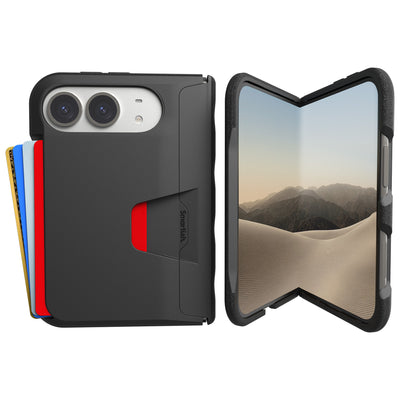
Sometimes the software is fine, but the hardware is tired. If your maximum capacity has dropped below 80%, no amount of setting tweaks will make the phone last a full day. This is when people start looking at expensive upgrades, but a better solution is often just changing how you carry your tech. If you’re tired of your phone dying during a night out, switching to a functional setup like the Wallet Slayer Vol. 2 allows you to keep your hands free and your essentials close, making it easier to manage your device without constant anxiety.
The Wallet Slayer Vol. 2 is designed for the person who needs to carry five cards plus cash without the bulk of a traditional wallet. While we don’t include electronic components or batteries in our cases, the convenience of the built-in kickstand and card slots means you can keep your phone secure while navigating your day. It’s the ultimate tool for those who want to simplify their carry while protecting their most precious device. Following these iPhone battery saving tips 2026 ensures your software is lean, while Smartish ensures your hardware is ready for whatever the day throws your way.
About the Wallet Slayer Vol. 2
This wallet case is the perfect sidekick for busy days. It holds your cards and cash securely, features a built-in kickstand for hands-free viewing, and comes in stylish colors like Flavor of the Month or Stiletto Black-Silver. Please note it is not compatible with wireless chargers or MagSafe technology, but it excels at keeping your essentials organized and your phone protected. If you’re looking for a more rugged option, consider the Gripzilla armor case for maximum protection.
Future-Proofing Your Phone Longevity for 2026 and Beyond
Lithium-ion batteries are essentially chemical sponges that wear out over time, but the way you treat your device in 2026 determines if it lasts two years or four. Modern iOS versions have become incredibly aggressive with background intelligence, which places a higher thermal load on the internal cells. To combat this, you should prioritize keeping your device within a stable temperature range. High heat is the primary catalyst for chemical degradation, so avoiding intense gaming or high-brightness video streaming while the phone is plugged into a fast charger is a fundamental strategy for your battery-saving checklist.
Apple has introduced more granular controls for charging limits, allowing users to cap their maximum charge at eighty percent. While it feels counterintuitive to leave twenty percent of your capacity on the table, this practice significantly reduces the stress on the battery’s chemistry. If you plan on keeping your device for several years, this setting is more effective than any individual software toggle. By combining these hardware-conscious habits with the system-level tweaks discussed earlier, you create a comprehensive approach to energy management that prioritizes long-term health over short-term convenience.
The 2026 Battery Verdict
The most effective way to save power today is to manage your "Radios and Refresh." By limiting how often your phone pings cellular towers and stopping apps from updating when they are not on screen, you tackle the largest sources of drain. For those using older hardware like the iPhone 11 Pro Max, physical protection and streamlined carrying are just as important as software settings. The Gripmunk case helps you stay organized while you navigate these power challenges, ensuring your essentials are always within reach even when you are hunting for a charging cable.
Hardware Solutions for Persistent Power Struggles
When you’ve toggled every setting and your device still struggles to make it through a busy afternoon, it’s time to look at your physical setup. Many people carry bulky external power banks that generate significant heat, which can actually damage the battery further. A more efficient approach is to simplify your daily carry so you’re never caught off guard. Using a dedicated wallet case allows you to keep your hands free and your phone accessible for quick top-offs at your desk or in the car without fumbling through a cluttered bag. This organized lifestyle reduces the "screen-on time" spent searching for digital loyalty cards or payment apps, which is an underrated tactic in our battery-saving guide.
The Wallet Slayer Vol. 2 offers a practical way to manage your tech and your life simultaneously. With its card slots and kickstand, it serves as a mobile command center that keeps your phone protected from the elements. While this case does not provide extra milliamp-hours through a built-in battery, its design encourages better phone habits. You’re less likely to leave your phone face-down on a hot surface or lose it in the depths of a backpack where it might overheat. It’s about protecting the hardware you have while maximizing the efficiency of your daily routine.
Pros and Cons of Hardware-Based Power Management
Pros
- Reduces screen-on time by keeping physical cards and cash accessible
- Protects the device from thermal stress caused by enclosed bags
- Crossbody straps prevent accidental drops and screen damage
- Wristlets provide extra security during quick photo ops
Cons
- Does not add extra battery capacity to the device
- Lacks compatibility with MagSafe or wireless charging pads
- Specific to the iPhone 11 Pro Max dimensions only
References
Final Recommendations for Peak Performance
Optimizing your device is a balance between convenience and conservation. Start by auditing your location and refresh settings, then move into automating your bedtime routines to stop overnight drain. If these steps don’t provide the longevity you need, examine the physical state of your device. A worn-out battery might need a professional replacement, but often, a change in how you carry and protect your phone can alleviate the stress of a dying device. Following these iPhone battery saving tips 2026 will keep your tech running smoother, cooler, and longer than the average user who leaves everything on default settings.
Remember that Smartish is here to help you navigate the "ish" of daily life. Whether it’s a software update that tanks your percentage or the need to carry your lipgloss and credit cards in one place, clever design usually provides the answer. Stay curious about your settings, stay unpretentious about your gear, and keep your phone ready for the unexpected. With the right mix of software discipline and a reliable case like the Wallet Slayer Vol. 2, you can stop worrying about the battery bar and get back to what actually matters. If you’re looking for more ways to organize your charging setup, don’t forget to check out our magnetic cord organizer.
Frequently Asked Questions
Why is my iPhone battery draining fast after the latest iOS 2026 update?
Every major iOS update triggers a background indexing process where your phone reorganizes photos, messages, and files. This usually lasts a few days and can make your phone feel warm and drain battery faster. If the drain continues past day three, check settings like 'Significant Locations' and 'Share iPhone Analytics' which Apple often resets to 'On' after an update.
How can I stop my iPhone from losing battery overnight?
Overnight drain often comes from 'Find My' network pings or iCloud backups struggling with a weak Wi-Fi signal. Your phone's modem works overtime to find a signal, generating heat and burning charge. Turn off 'Significant Locations' in Privacy settings and check for phantom 'Live Activities' on your lock screen to stop unnecessary background tasks.
Does force closing apps save battery on iPhone?
No, force closing apps actually uses more energy because the phone has to reload the entire app from scratch the next time you open it. iOS is designed to freeze apps in the background using almost zero resources. Only close an app if it's frozen or acting up, otherwise let the system manage its own memory.
Which iPhone settings should I change first to save battery in 2026?
Start by setting Background App Refresh to 'Wi-Fi Only' or off for non-essential apps. Then audit Location Services and change apps from 'Always' to 'While Using' except for maps. Disable Always-On Display if your model has it, and switch Mail from 'Push' to 'Fetch' so your phone checks for new emails every 15 or 30 minutes instead of constantly pinging the server.
Is Dark Mode always effective for saving iPhone battery?
Dark Mode only saves energy on OLED screens because black pixels are essentially off, but it makes almost no difference on older LCD screens. Even on OLED models, the savings are minimal unless you keep your brightness high. It's a helpful tool but shouldn't be your only strategy; true efficiency comes from managing the processor, not just the pixels.
Should I keep Low Power Mode on all the time?
No, Low Power Mode throttles performance and pauses important background backups like iCloud sync. It's designed for temporary use when your battery drops below 50%. For day-to-day savings, use the Shortcuts app to automatically trigger Low Power Mode when your battery hits 40% instead of the default 20%.
What should I do if my iPhone battery drain continues after a few days?
First, wait for system indexing to complete, which usually takes three days. If drain persists, check your Location Services under System Services. Apple often resets these toggles after updates. Turn off 'Significant Locations' and 'Share iPhone Analytics'. Also look for 'Live Activities' on your lock screen that might be running in the background without your knowledge.