





iPhone 18 Pro overheating
If your iPhone 18 Pro feels warm during setup, gaming, charging, or long camera sessions, that can be normal. Heat that keeps building during light use, triggers a temperature warning, or makes the phone uncomfortable to hold deserves closer attention. This guide to iPhone 18 Pro overheating explains how to distinguish a busy phone from a possible problem.
Key Takeaways
- Warmth during gaming, charging, or camera use is usually normal because those tasks push the A19-class chip hard.
- Heat that keeps rising during light use, or a temperature warning that stops you from using the phone, signals a real problem worth investigating.
- Common fixes include removing thick cases while charging, closing background apps, updating iOS, and avoiding direct sunlight.
- Persistent overheating with no obvious cause can point to a battery defect or software issue, which Apple support should diagnose.
The activity matters as much as the warmth itself. A phone restoring photos is doing different work from one sitting idle on a desk, and those situations call for different next steps.
Is Your iPhone 18 Pro Overheating? First, Know What's Normal
Brief warmth during demanding tasks or the first days after setup is usually not a reason to panic. Pause the activity and let the phone cool in a shaded, well-ventilated spot. If it heats up during basic browsing, stays unusually hot at rest, or displays a temperature warning, stop using it and investigate rather than chalking it up to a busy day.
Why a New iPhone 18 Pro Runs Hot (Hint: It's Working Hard)
Restoring a backup, downloading apps, processing photos, and syncing accounts can all tax the processor and battery. That cooling design can help manage heat, but it doesn’t make the phone immune to warmth during intensive use.
The Setup Window: 24-48 Hours of Background Activity
After setup, the phone may continue indexing files, syncing photos, and organizing search results while the screen is off. User reports describe warmth lasting two to five days in some cases, so the first 24-48 hours aren’t a firm deadline for every phone. Keep it in a cool place, connect to Wi-Fi when practical, and give background tasks time to finish. If warmth continues during light use after syncing settles, note when it happens and which apps are open.
Normal Warmth vs. Problematic Heat: Quick Reference
Warmth alone doesn’t diagnose a defect. Look at what the phone was doing, how long the heat lasted, and whether iOS limited a feature or displayed a warning. A temperature alert is a clear signal to stop using the device until it cools. Repeated heat during simple tasks is more concerning than warmth during a long video recording.
| More likely normal | Worth investigating |
|---|---|
| Warm during backup restoration, gaming, or camera use | Uncomfortably hot during basic browsing or while idle |
| Warmer while charging or in direct sun | Repeated temperature warnings or interrupted use |
| Heat fades after the demanding task ends | Heat persists after the phone rests in a cool setting |
Does the iPhone 18 Pro Have a Design Flaw?
As of October 2026, no official recall or widespread defect has been announced for this model. That doesn’t rule out an issue with an individual phone, especially if it gets hot during light use or repeatedly shows temperature alerts. Take the symptom seriously without assuming every warm phone is faulty.
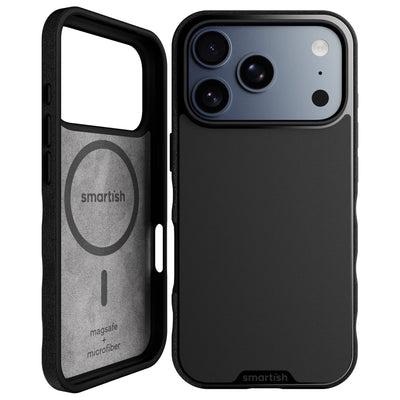
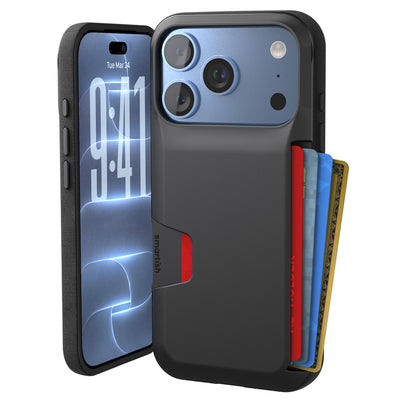
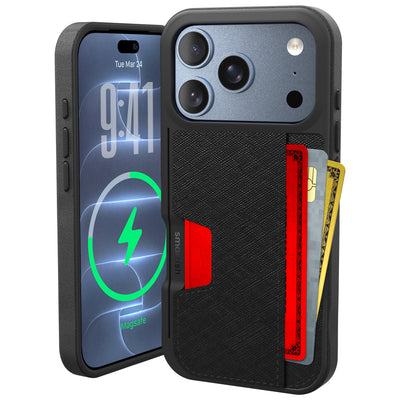
One accessory-fit note: Gripmunk - Slim Case for iPhone 16 Pro is made for iPhone 16 Pro, not iPhone 18 Pro. Don’t buy it as a case for this phone. Gripmunk - Slim Case for iPhone 16 Pro should only be considered for its named model; case fit is model-specific.
Scenario Guide: Why Your iPhone 18 Pro Gets Hot and What to Do
To narrow down iPhone 18 Pro overheating, connect the heat to what the phone was doing. Use the matching row below, then try the simple step before changing settings or assuming something is broken.
| Situation | Why it warms up | First step |
|---|---|---|
| Setup and initial sync | Backup restoration, downloads, and indexing run in the background | Keep it on Wi-Fi and let syncing finish |
| Gaming or streaming | High processor use, graphics, network activity, and screen brightness add workload | Pause the session and lower screen brightness |
| 4K video recording | Camera processing and sustained recording generate heat | Stop recording and move out of direct sun |
| Charging | Charging adds heat, especially during intensive use | Pause demanding apps while it charges |
| Sunlight or hot car | External heat limits the phone’s ability to cool | Move it to a shaded, cooler location |
During Setup and Initial Sync
A new phone can feel warm while downloading apps, restoring messages, and syncing a photo library. Leave it connected to Wi-Fi and power in a cool, open spot, and avoid adding extra tasks during the restore. If setup is complete but heat returns during simple tasks, check whether an app is still syncing or processing content.
While Gaming or Streaming
Graphics-heavy games, high brightness, and streaming over a weak cellular connection can keep the processor and display busy. Take a break, reduce brightness, and move to a stronger Wi-Fi connection if available. Warmth that appears only during a demanding session and fades afterward is less concerning than heat during ordinary browsing.
When Recording 4K Video (and Why the Screen Dims)
Long 4K recordings ask a lot of the camera system, processor, display, and battery. In a hands-on test by whoismatt.com, both iPhone 18 Pro and iPhone 17 Pro stopped recording 4K at 60 frames per second after exactly eight minutes in direct Texas sun. The iPhone 18 Pro screen dimmed at 1 minute 50 seconds, then maintained brightness longer afterward. Dimming helps manage heat; it’s a protective response, not proof of damage. Stop recording and move somewhere cooler.
While Charging: Wired, Fast, and MagSafe
Some warmth during charging can happen, and demanding use at the same time adds more work. Set the phone down, remove it from direct sunlight, and pause gaming or video capture until charging ends. If it repeatedly becomes uncomfortably hot while charging without active use, note the charging setup and see whether the behavior continues under cooler conditions.
In Direct Sunlight or a Hot Car
Sunlight and a parked car can heat a phone from the outside, apart from its own workload. Move it into shade or an air-conditioned space and stop intensive tasks while it cools. Don’t leave it on a sunny dashboard; your phone isn’t a tiny, very expensive dashboard ornament.
Fixes That Actually Work: Your Troubleshooting Flowchart
If the phone stays hot during ordinary use, troubleshoot in order instead of changing every setting at once. Start with software and background activity, then check which apps use the most battery. This makes patterns easier to spot and gives you useful details if you need to ask Apple for help.
Step 1: Update iOS and Let It Finish Optimizing
Open Settings > General > Software Update and install an available update. Updates can include bug fixes, making this a sensible first check if heat began after setup or a software change. Afterward, give the phone time to complete downloads, photo processing, and other background tasks. Don’t judge the result while those jobs are still running. If the phone becomes hot during a light task after activity has settled, move to the next step.
Step 2: Force Restart the Right Way
A force restart can clear a temporary software hang without erasing your data. On iPhone 18 Pro, quickly press and release the volume-up button, then quickly press and release the volume-down button. Press and hold the side button until the Apple logo appears, then release it. The screen may go dark before the logo shows. Don’t keep holding the buttons after the logo appears, and don’t confuse this process with erasing or resetting the phone.
Step 3: Tame Background App Refresh, Brightness, and 5G
Reduce unnecessary activity for a short test period. In Settings > General > Background App Refresh, turn off background refresh for apps that don’t need to update when you aren’t using them. Lower display brightness and try Wi-Fi where cellular reception is weak. A struggling cellular connection can add radio work, while a bright screen adds power demand. Change one setting at a time, then use the phone normally long enough to see whether the heat pattern changes.
Step 4: Check Battery Health and App Analytics for the Culprit
Open Settings > Battery to review recent usage and see whether one app is consuming an unusual share of power. Check Settings > Battery > Battery Health for any service message. Apple’s battery and performance guidance explains how battery condition can affect performance; checking battery health is more useful than guessing from warmth alone. If an app stands out, update it, close it when you’re done, or remove it temporarily to test whether the symptom changes.
You can also review Settings > Privacy & Security > Analytics & Improvements > Analytics Data for repeated entries tied to an app or process. Those logs can be technical and aren’t a diagnosis by themselves. Note the time, activity, app, and any temperature alert instead of treating one unfamiliar log entry as proof of a hardware fault.
Follow the Flowchart: When to Try What
Use this sequence to keep troubleshooting focused. Stop if iOS displays a temperature warning, and let the phone cool before continuing.
- Heat began after setup or an update? Let background work finish, then install any available iOS update.
- Heat continues during light use? Force restart, then reduce background refresh and screen brightness.
- One app appears high in Battery usage? Update or temporarily remove that app, then observe the phone.
- Still hot at rest or repeatedly showing a warning? Record the circumstances and contact Apple Support for a device-specific assessment.
Change one thing at a time and note whether the phone cools during ordinary use. That checklist is more useful than toggling settings and trying to remember what changed.
Cases, Chargers, and Cooling Myths: What Helps and What Doesn't
A case can affect how quickly warmth escapes, but it usually isn’t the only reason a phone gets hot. Workload, charging, sunlight, and ventilation also matter. If iPhone 18 Pro overheating seems to happen only with a particular case, remove it briefly while the phone is cool and compare under the same light-use conditions. Check the exact model listed on the package or product page before buying a replacement. Case fit is model-specific: Gripmunk - Slim Case for iPhone 16 Pro fits iPhone 16 Pro, not iPhone 18 Pro.
Do Thick Cases Trap Heat? What Actually Matters
A bulky case may slow heat dissipation, particularly during charging or a long, demanding task. That doesn’t mean every protective case causes a problem, or that removing a case will fix heat caused by an app or the environment. Check whether the phone cools during ordinary use without the case, then repeat the same activity with it on. If the difference is clear, choose a case made for your exact iPhone model that balances protection with a comfortable grip. For iPhone 16 Pro owners, Gripmunk - Slim Case for iPhone 16 Pro is a slim case for that specific model, not a fit for iPhone 18 Pro.
Do's and Don'ts for Cooling Your iPhone Down
When the phone feels uncomfortably warm, stop demanding tasks, unplug it if it’s charging, and move it out of direct sun. Set it on a dry, open surface in a cooler room, away from other heat sources. Give it time to cool before resuming use.
Do
- Use shade and airflow, and pause intensive apps.
- Remove a case temporarily if you suspect it is holding warmth.
Don't
- Keep recording, gaming, or charging through a temperature warning.
- Use ice, a freezer, or a refrigerator to force rapid cooling.
DIY Cooling Tricks Debunked (Freezer? No.)
Rapid temperature changes can create condensation, and moisture is not a cooling accessory your phone needs. Skip freezer experiments, ice packs, and cold water. A fan or a naturally cooler indoor spot is safer. If the device keeps heating during simple tasks after it has cooled, focus on the recurring behavior rather than trying a more extreme cooling trick.
When to Worry: Warranty, Apple Support, and Battery Health
Warmth that fades after a demanding task differs from persistent heat during light use. Watch for repeated temperature warnings, heat while the phone is idle, or discomfort during basic browsing. If you’re tracking iPhone 18 Pro overheating, note the activity, charging status, case, and whether iOS limited use. Those details help Apple assess the issue beyond “it gets weirdly hot,” a valid feeling but a less useful service report.
Red Flags That Point to a Hardware Issue
Stop using the phone and contact Apple Support if it repeatedly displays a temperature warning, remains unusually hot after resting in a cool place, or heats during simple tasks despite software troubleshooting. Seek help promptly if you notice physical damage or battery swelling; don’t press on the device or attempt a repair. Apple’s temperature guidance describes how an iPhone may limit functions when it gets too warm, so follow a warning rather than continuing to test.
How Heat Affects Long-Term Battery Health
Repeated exposure to high temperatures can shorten a lithium-ion battery’s useful life. Apple’s battery guidance explains that temperature conditions affect battery performance and longevity. Brief warmth during a heavy task does not, by itself, prove lasting damage. If you’re concerned, check Battery Health for a service message and watch for a repeatable pattern instead of judging the battery by one warm afternoon.
Repair, Return, or Replace? A Quick Decision Guide
Start with the least dramatic option that fits the evidence. If the phone cools and the issue does not return, keep an eye on it. If heat repeats during light use, contact Apple Support and describe what you observed. Apple’s warranty and service policies determine whether a repair is covered; accidental damage and other exclusions may affect eligibility, so ask Apple to assess the device before paying for service or replacing it.
- Warning or persistent heat? Stop using the phone until it cools.
- Recurring during basic tasks? Record the conditions and contact Apple Support.
- Battery service message or physical change? Arrange an Apple assessment rather than attempting a DIY repair.
Warmth alone is not a reason to replace a phone. If the same symptom returns after reasonable troubleshooting, a professional assessment is the sensible next step for iPhone 18 Pro overheating.
Frequently Asked Questions
Why is my brand new iPhone 18 Pro getting so hot?
A new iPhone 18 Pro often runs warm because backup restoration, app downloads, photo syncing, and indexing are taxing the processor behind the scenes. This background activity can last from 24 hours up to five days. Keep it on Wi-Fi in a cool spot and let syncing finish before worrying.
Is iPhone 18 Pro overheating normal during the first few days?
Warmth during the first 24 to 48 hours of iPhone 18 Pro use is usually normal, and some users report it lasting two to five days. Heat is only a concern if it happens during light use after syncing settles, or if iOS shows a temperature warning.
What are the signs of real iPhone 18 Pro overheating versus normal warmth?
Real iPhone 18 Pro overheating shows up as uncomfortable heat during basic browsing, unusual warmth at rest, heat that persists after resting in a cool spot, or repeated temperature warnings. Warmth during gaming, charging, or camera use that fades when the task ends is typically normal.
What is the 40-80 rule on iPhones?
Staying within this range helps limit heat and wear, which supports long-term battery health on models like the iPhone 18 Pro.
Does the iPhone 18 Pro have an overheating problem or design flaw?
As of October 2026, no official recall or widespread defect has been announced for the iPhone 18 Pro.
Why does my iPhone 18 Pro screen dim while recording 4K video?
Screen dimming during iPhone 18 Pro 4K recording is a protective response to heat, not proof of damage. In one hands-on test, both the iPhone 18 Pro and iPhone 17 Pro stopped 4K 60fps recording after about eight minutes in direct sun. Stop recording and move somewhere cooler.
Is it bad to charge your iPhone 18 Pro overnight?
Charging an iPhone 18 Pro overnight is generally safe, though some warmth during charging is normal. Avoid piling on demanding tasks like gaming while it charges, keep it out of direct sunlight, and move it to a cooler location if it becomes uncomfortably hot without active use.