



find airtags
Alright, let's talk about those little pucks of Bluetooth magic. Apple's AirTags are pretty slick for keeping tabs on your keys, your backpack, or that one remote that always seems to vanish into the couch void. They tap into the massive Find My network, which uses over a billion Apple devices to help you locate your stuff without actually needing to be near it yourself. Pretty neat, right? But like any tech that can track movement, it’s also opened up a can of worms for privacy and safety. We’re here to help you navigate how to find AirTags, whether they are yours or if you suspect an unknown one might be accompanying you. No drama, just the facts to keep you feeling secure and your belongings accounted for.
Key Takeaways
- AirTags tap into Apple's Find My network, which uses over a billion devices to help you locate your stuff even when you're not nearby.
- These little trackers are great for finding lost keys or a remote, but they also raise real privacy concerns if someone slips one into your bag or car.
- To find a lost AirTag, open the Find My app and follow the sound or use the Precision Finding feature if you have a compatible iPhone.
- If you suspect an unknown AirTag is following you, your iPhone will alert you, and you can use the app to make it play a sound or see its serial number.
- Android users aren't left out: download the Tracker Detect app to scan for nearby AirTags that don't belong to you.
This isn't about building a paranoia palace; it's about being informed. From figuring out where your own misplaced item is to understanding if an untrusted tracker is making an unwelcome appearance in your life, we’ve got the lowdown. Think of it as your friendly guide to Bluetooth tracking, Smartish style. Let’s get this sorted.
How to Locate Your Own AirTag Using Your iPhone
So, you've misplaced something important, and it's got an AirTag attached. Breathe easy. Your iPhone is your best buddy here, thanks to the Find My app. This is the primary tool for keeping tabs on all your Apple-enabled gadgets and accessories, including your AirTags. It’s designed to be straightforward, showing you the last known location of your item on a map. For most everyday misplacements, like leaving your wallet at a coffee shop or your keys at home, the map view is usually all you need to get started.
Once you're close to your AirTag, the real magic happens. You can trigger the AirTag to play a distinct sound, helping you pinpoint its exact location, even if it’s buried under a pile of laundry or tucked away in a bag. For iPhone 11 and later models, the Find My app offers an even more advanced feature called Precision Finding. This uses Ultra Wideband technology to give you precise distance and direction information, guiding you right to your lost item. It’s like a little treasure map, but for your stuff. Just follow the on-screen prompts, and you’ll be reunited with your belongings in no time.
What 'No Location Found' and 'Offline' Mean
Sometimes, the Find My app might show your AirTag as 'No Location Found' or 'Offline.' Don't panic just yet; this usually means the AirTag is out of range of any Apple devices, or its battery is dead. If it’s 'Offline,' it simply means it hasn't been able to connect to the Find My network recently. This could be because it's in a place with no Wi-Fi or cellular signal, or perhaps it’s been removed from your Apple ID. The app will display its last known location, which is still super helpful for narrowing down your search area. Think of it as a clue rather than a dead end.
If your AirTag has been out of range for an extended period, or if the battery has completely drained, you might see 'No Location Found.' In this scenario, the app can't provide any recent location data. The best course of action is to retrace your steps to where you last remember having the item. When the AirTag eventually comes back into range of the Find My network (either by being found or by someone else's device passing by), its location should update automatically. It’s a good reminder to check your AirTag’s battery periodically, especially if it’s attached to something you can’t afford to lose.
Using iCloud to Locate a Lost AirTag
Can't find your iPhone but need to locate your AirTag? No sweat. You can access the Find My app through any web browser by logging into iCloud.com. This is a lifesaver if your primary device is missing or if you're borrowing someone else's Apple device. Simply sign in with your Apple ID, navigate to the Find My section, and you’ll see a list of your devices and items, including your AirTags. The interface is very similar to the app, showing you their last reported locations on a map.
This web-based access is particularly handy. For example, if you're trying to find AirTags that you suspect might be in your car and your phone is dead, you can use a friend's phone or a computer to check their location. It’s a direct line to your item's whereabouts, no matter where you are. Remember, this relies on the AirTag having had a recent connection to the Find My network, just like the app. If it’s been offline for a long time, iCloud will show the last known spot. It’s a reliable fallback that ensures you can always check in on your tagged items.
How to Tell if an Unknown AirTag Is Tracking You

Apple designed AirTags with privacy in mind, including features to alert you if an unknown tracker is moving with you. If an AirTag that isn't yours is separated from its owner and detected traveling with you for a period, your iPhone will send a notification: 'AirTag Found Moving With You.' This alert is designed to let you know that an AirTag might be tracking your location without your knowledge. The system aims to detect this after a period of travel, though Apple has continued to update firmware to make these alerts more immediate and comprehensive, especially for unwanted tracking scenarios.
When you receive this alert, your iPhone can help you locate the unknown AirTag. Tapping the notification will take you to the Find My app, where you can play a sound on the AirTag to help you find it physically. If you don't have an iPhone or are an Android user, Apple and Google collaborated to create a system that allows Android phones to automatically detect unknown AirTags nearby. This collaboration means Android devices can now alert users to the presence of unwanted trackers, filling a significant gap that existed previously. It's a collaborative effort to improve safety for everyone using or encountering these devices.
How to Scan for Hidden Trackers on Android
For Android users, detecting unknown AirTags requires a bit more proactive effort, though the situation has improved significantly. Initially, Android users had to rely on the 'Tracker Detect' app, which Apple developed. This app allows you to manually scan for AirTags that are separated from their owner and are traveling with you. You would need to open the app and initiate a scan periodically. While helpful, it wasn't automatic like the iPhone alerts.
But as of 2026, Google and Apple have partnered to integrate unknown tracker alerts directly into Android’s operating system. This means that Android devices running compatible versions can now automatically detect and alert you if an AirTag or other Find My-enabled accessory is traveling with you without your consent. If you receive an alert, you can use the Tracker Detect app or the built-in Android functionality to make the unknown AirTag play a sound, helping you locate it. This shared approach is a big step forward in ensuring that anti-stalking features are accessible across different mobile platforms, making it easier for more people to find AirTags that might be used maliciously.
Why You Might Get False Alarms from Neighbors
It's not uncommon for iPhone users to occasionally receive an 'AirTag Found Moving With You' alert even when they haven't been targeted. These false alarms often happen when an AirTag belonging to a friend, family member, or even a neighbor is temporarily in close proximity to you. For example, if a neighbor has an AirTag on their pet or bicycle that wanders into your yard, or if a friend leaves their tagged item in your car for a short period, your iPhone might interpret this as an unknown tracker. The system is designed to detect stray trackers, so sometimes it picks up on legitimate, but temporarily misplaced, items from people you know.
These false alarms can be confusing and even a little unnerving. The key is to remain calm and use the tools provided. If you get an alert, first check if anyone you know might have an AirTag nearby that could be the source. You can then use the Find My app or Tracker Detect app to play a sound on the AirTag. If the sound leads you to an item belonging to someone you recognize, you can likely dismiss the alert. If you can't identify the owner or the situation feels suspicious, it's always better to err on the side of caution and follow further safety protocols, like disabling the tracker or contacting authorities if you suspect misuse. Understanding that these alerts can sometimes be benign is part of managing the technology responsibly.
Step-by-Step: How to Find a Hidden AirTag in Your Car
Discovering an unknown AirTag in your vehicle can feel like a scene from a spy movie, and frankly, it’s unsettling. Whether you’re worried about theft, unwelcome surveillance, or just can’t figure out where that alert is coming from, a systematic search is your best bet. Thieves have unfortunately used these trackers to monitor vehicles before stealing them, making prompt discovery a priority. The good news is that with a bit of patience and a methodical approach, you can often locate these small devices hidden away.
Before you start, remember that AirTags are small, about the size of a quarter, and designed to be discreet. This means they can be tucked into surprisingly small spaces. Your car offers a multitude of hiding spots, from the obvious to the downright sneaky. The goal here isn't just to find AirTags but to do so efficiently, minimizing the time you spend feeling anxious. We’ll break down where to look, both inside and out, to give you the best chance of finding any hidden trackers.
Where to Look Inside the Cabin
Your car's interior is a prime location for a concealed tracker. Start with the most common spots: under the seats, especially near the rails or any plastic trim. Check the seat pockets, the center console (including the small storage areas and cup holders), and the glove compartment thoroughly. Don't forget to look in the door pockets, the sun visors, and any small cubbies or storage nets. The area around the steering wheel, the dashboard crevices, and even inside the air vents (if accessible) are also worth a careful inspection.
Think about where someone might place a small, flat object without it being immediately visible. This could mean looking behind floor mats, under the edge of carpets, or even taped to the underside of the dashboard or seat frames. If you have a hatchback or SUV, the cargo area is another large space to search, including under the floor liner and within any storage compartments. Sometimes, the tracker might be attached to something like a child’s car seat or a bag left in the vehicle, so check those items specifically.
Checking the Exterior and Undercarriage
If the cabin search yields nothing, it's time to move outside. Thieves might attach a tracker to the exterior, hoping it won't be found easily. Common external spots include the wheel wells, the area behind the license plate, the car’s bumpers (especially the plastic trim), and any external storage compartments if your vehicle has them. Check the roof and the underside of the car itself. Magnets are often used to secure trackers, so feel along the metal surfaces, particularly near the sides and rear of the vehicle, for any unusual attachments.
The undercarriage presents the most challenging but also potentially fruitful area. Using a flashlight, inspect the frame, suspension components, and any accessible cavities. Devices might be taped or magnetically attached to the chassis. But, be cautious when getting under your car. If you’re not comfortable doing so, or if you suspect a tracker is in a hard-to-reach spot, it might be best to seek professional help. A mechanic or a security specialist can often perform a more thorough inspection of the vehicle's exterior and undercarriage.
Pro Tip: If you have an iPhone, use the 'Find My' app's Precision Finding feature when you’re close to the suspected tracker. It can guide you with directional arrows and distance, making the search much more targeted, even in the nooks and crannies of your car. For Android users, the 'Tracker Detect' app (or built-in detection) can help trigger a sound from the AirTag, which is invaluable for locating it when you're nearby.
What to Do After Finding a Suspicious AirTag
Finding an unknown AirTag attached to your belongings or vehicle can be a jarring experience. Your immediate priority is ensuring your safety and security. Once you've located a suspicious tracker, it's important to know the correct steps to take. This isn't just about removing an unwanted device; it's about mitigating potential risks and gathering necessary information without putting yourself in danger. Remember, the primary purpose of these trackers is to help locate lost items, but their misuse is a serious concern that Apple has worked to address through various alerts and detection mechanisms.
If you've received an alert or conducted a search and located an AirTag that you believe is being used to track you without your consent, remain calm. The next actions you take can help you disable the tracker, identify its owner if possible, and determine if further action is necessary. It’s important to handle the situation carefully, especially if you suspect malicious intent. Following these guidelines will help you manage the discovery responsibly and effectively.
How to Disable the Tracker by Removing the Battery
The most direct way to disable an AirTag and stop it from transmitting its location is by removing its battery. This is a straightforward process that doesn't require any special tools. To access the battery, you need to press down on the polished stainless steel back cover of the AirTag and twist it counter-clockwise until it stops. The cover and battery will then lift out. The AirTag will emit a sound to indicate it has been disabled and will no longer be trackable via the Find My network.
Once the battery is removed, the AirTag is effectively neutralized. It can no longer communicate its location or emit sounds. This is a critical step if you feel unsafe or want to immediately prevent further tracking. Keep the removed battery and the AirTag in a separate container, perhaps a small box or bag, to prevent accidental reassembly or further interaction until you decide on the next steps. This action ensures that the device is inert and cannot be used to monitor your movements.
Checking for Owner Info with an NFC Scan
AirTags are equipped with Near Field Communication (NFC) technology, which can provide information about the owner if the tracker is lost or found. After disabling the tracker by removing the battery, you can use your smartphone to scan the AirTag. Simply hold the top of your iPhone or an NFC-enabled Android phone near the white side of the AirTag. Your phone should automatically bring up a notification that leads to a webpage with information about the AirTag, including the owner's contact information if they have chosen to share it.
This NFC scan is an important step in potentially returning a lost AirTag to its rightful owner, or at least gathering information if you suspect misuse. If the owner has set up the AirTag as lost, their contact details (like an email address or phone number) will be displayed. This allows for a safe and direct way to connect with the owner. If no contact information is provided, or if the situation remains suspicious after the scan, you may need to consider other options.
When to Contact the Authorities
If you discover an AirTag that appears to be used for stalking or other illicit purposes, and the NFC scan doesn't yield helpful information, it’s time to involve the authorities. This is especially true if you've received persistent 'AirTag Found Moving With You' alerts, found the tracker in a place that suggests malicious intent (like inside your car or taped to your person), or if you feel genuinely threatened. Document everything: take screenshots of alerts, note the time and location of discovery, and keep the AirTag and battery separate. This evidence is important for any investigation.
Law enforcement agencies are increasingly aware of how these trackers can be misused. They can assist in tracing the device back to its registered owner if necessary and can provide guidance on further safety measures. Given the potential for serious privacy violations and harassment, treating a suspicious AirTag discovery with caution and reporting it when appropriate is the most responsible course of action. Your safety and peace of mind are paramount, and involving the police is a key step in ensuring both.
Keep Your Everyday Carry Secure

Protect Your AirTag with Smartish
AirTags are nifty little gadgets, but they’re only as good as how well they stay put and protected. That’s where Smartish steps in. Our AirTag cases are designed to keep your tracker safe from everyday bumps, drops, and the occasional butterfingers moment. While AirTags come with a sleek design, they’re not exactly built to withstand rough handling or accidental scratches. Smartish cases add a layer of defense without bulk, maintaining the compact convenience of your tracker while making it easier to attach securely to your valuables.
These cases use high-quality materials that resist wear and tear, so your AirTag doesn’t end up looking like it went through a blender. Plus, the snug fit means your AirTag won’t pop out and get lost, which defeats the whole point of having one. Whether you’re clipping it on a backpack, slipping it into a wallet, or attaching it to your keys, Smartish cases keep your tracker exactly where it should be. They’re the kind of practical, down-to-earth gear that makes you wonder why no one else thought of it sooner.
Heads up: An AirTag without a proper case is more vulnerable to damage and accidental loss. A Smartish AirTag case cuts down on those risks, helping you find AirTags faster and with less hassle.
Match Your Tracker to Your iPhone 17 Case
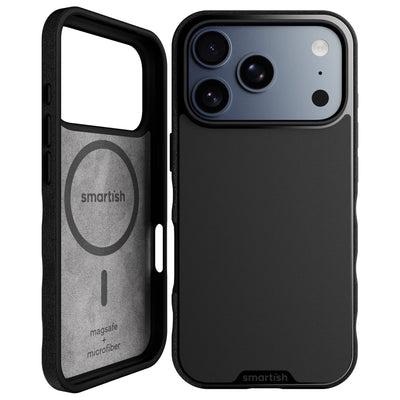
Since your AirTag is often riding shotgun with your phone, why not keep the style and protection consistent? Smartish offers cases for the latest iPhone 17 that pair perfectly with our AirTag holders, creating a coordinated setup that’s both functional and sharp-looking. Our iPhone 17 cases have the same no-nonsense attitude: slim profiles, grippy edges for a sure hold, and raised bezels to guard your screen and camera. They keep your phone safe during daily adventures without adding that annoying bulk.
Pairing your AirTag with a Smartish case for your iPhone 17 means both devices get the protection they deserve while keeping your everyday carry streamlined. You’ll avoid the awkward juggling act of bulky accessories and reduce the chance of losing track of your essentials. Plus, the cases come in clever colors and patterns that let you express yourself without screaming “look at me.” Your phone and tracker become a team that works as hard as you do, whether you’re dashing through the city or just chilling at home.
With this setup, you’re not just carrying gadgets; you’re equipping your daily life with smart, reliable tools designed to handle real-world wear and tear. That’s the kind of thoughtful design that turns a minor annoyance. Losing stuff. Into something you barely think about. And when you do, it’s because you found your keys in seconds, not because you’re hunting blind in a pile of laundry.
So, if you want to find AirTags easily and keep your phone looking sharp and protected, consider matching your AirTag case with a durable, stylish iPhone 17 case. It’s a combo that makes sense for anyone who treats their tech like a tool, not a trophy.
References
Frequently Asked Questions
How can I detect a hidden AirTag?
You can detect a hidden AirTag by using your iPhone's Find My app. If an unknown AirTag is moving with you, your iPhone will send an alert saying "AirTag Found Moving With You." From there, you can play a sound on the AirTag to locate it physically.
Can you detect an AirTag with your phone?
Yes, you can detect an AirTag with your phone. iPhones automatically alert you if an unknown AirTag is traveling with you, and Android devices can also detect AirTags through a built-in system developed with Apple.
How can I locate a lost AirTag?
To locate a lost AirTag, open the Find My app on your iPhone. The app shows the AirTag's last known location on a map, and you can make it play a sound once you are close. For iPhone 11 and later, Precision Finding gives you exact distance and direction.
How do I scan for AirTags near me?
To scan for AirTags near you, use the Find My app on an iPhone. If an unknown AirTag is nearby, your phone will alert you. Android users can scan for AirTags by relying on automatic detection or using a dedicated scanning app.
Can I tell if someone put an AirTag in my car?
Yes, you can tell if someone put an AirTag in your car. Your iPhone will send a notification if an unknown AirTag is detected moving with you over time. The Find My app can then help you locate the AirTag by playing a sound.
What does "No Location Found" mean on my AirTag?
"No Location Found" on your AirTag means it hasn't connected to the Find My network recently or the battery is dead. The app will display its last known location, which helps narrow down where to search. Once the AirTag comes back into range, its location updates automatically.