




action button iphone 15
What Is the Action Button on iPhone 15?
The action button iphone 15 replaces the traditional mute switch on iPhone 15 Pro and Pro Max models. Instead of a simple toggle, you get a customizable button that launches shortcuts, apps, and features with a single press. Think of it as a programmable quick-access tool for your most-used functions.
The Action Button is a physical button on iPhone 15 Pro models that you can customize to trigger different actions like opening the camera, turning on the flashlight, starting a voice memo, or launching accessibility features. It’s located where the mute switch used to be and can be reassigned anytime in Settings.
Out of the box, it defaults to Silent Mode, mimicking the old mute switch. In Settings, you’ll find nine preset functions, plus the ability to run custom shortcuts. Press and hold for about a second to activate your chosen action.
Benefits of the Action Button
The biggest win is speed. Opening your camera normally takes multiple steps, but with the button set to Camera, you’re shooting in under a second. Same goes for voice memos, flashlight, or any app you use constantly throughout the day.
Accessibility features get a serious boost, too. Magnifier, Voice Control, or AssistiveTouch become instantly available without digging through menus. If you rely on these tools daily, that’s a real quality-of-life upgrade.
Customization goes deeper with Shortcuts. You can set the button to text a specific person, log workouts, control smart home devices, or trigger multi-step routines.
How to Choose and Set Up the Action Button
Start by thinking about what you reach for most. If you’re always opening the camera for quick shots, that’s an easy choice. Commuters might prefer a transit app or podcast player. Parents often pick Camera or Flashlight for everyday moments.
To configure it: open Settings, tap Action Button, then browse the nine default options (Silent Mode, Camera, Flashlight, Voice Memo, Focus, Magnifier, Translate, Accessibility, or Shortcut). Select one, then test it by pressing and holding the button until you feel the haptic response.
For custom shortcuts, pick the Shortcut option and build your own. You can combine actions, like texting your location to someone while opening Maps. The button works through most cases, including Gripmunk and Gripzilla, so protection doesn’t mean sacrificing access.
Protecting Your Action Button Setup
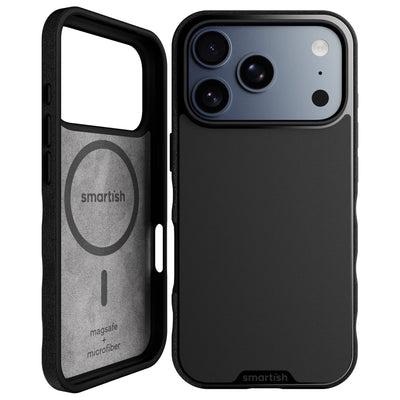
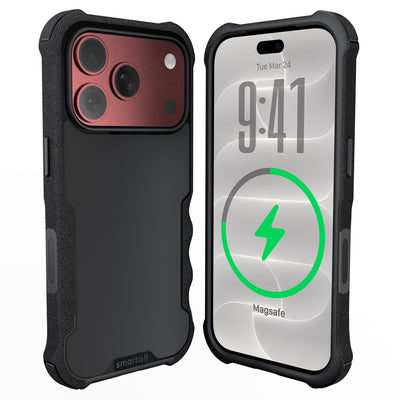
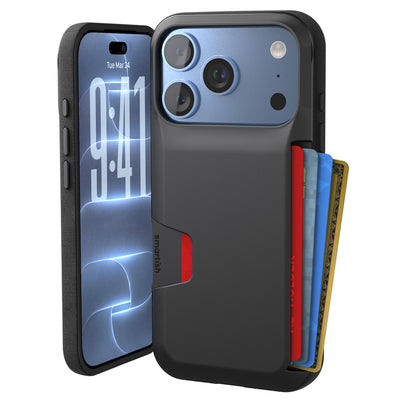
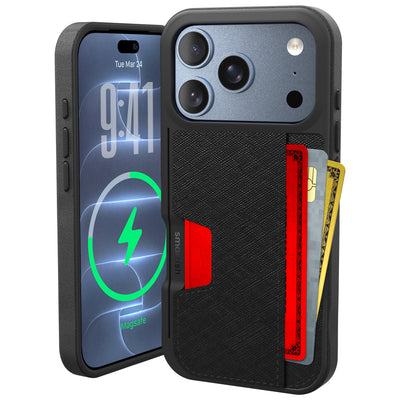
A case shouldn’t block the feature you’re trying to use. Smartish Gripmunk and Gripzilla both leave the Action Button fully accessible while adding air-pocket corners and raised screen edges. The grippy texture also helps prevent drops when you’re reaching for a quick camera shot.
The raised camera ring protects your lenses when you set the phone down, which matters if you’re using the button to snap photos constantly. Clear versions show off your iPhone’s color while staying anti-yellowing, so your case looks newer for longer.
Both cases are drop-tested and MagSafe compatible. Gripmunk keeps things slim, while Gripzilla adds more protection without interfering with button responsiveness. At $29.99 to $34.99 (with free shipping over $35), it’s a solid way to protect a device that costs a lot more.
Real-World Action Button Uses
Dog owners set it to open the camera fast for those fleeting cute moments. Commuters use it to pull up a transit pass or start navigation home. Gym-goers trigger workout shortcuts that start timers and open fitness apps.
Parents with young kids often choose Flashlight for quick visibility checks or bedtime routines. Accessibility users assign it to Magnifier or Voice Control for immediate access to tools they use throughout the day.
Creators can build shortcuts that open their camera app with specific settings ready to go. One press can drop you into video mode with the right resolution and frame rate, saving time when something is happening right now.
Troubleshooting Action Button Issues
If your button stops responding, check that your case isn’t pressing it constantly. Remove the case and test the button directly. If it works without the case, the cutout may be too tight or misaligned.
If it’s not triggering your shortcut, open Settings and reassign it, then test again. Sometimes iOS updates reset custom shortcuts back to default functions. Make sure you’re holding the button long enough to feel the haptic confirmation.
Battery drain from frequent use is normal if you’re launching power-hungry apps like the camera dozens of times a day. The button itself uses minimal power, but the apps it opens may not. If battery life becomes an issue, assign a lighter action.
Advanced Action Button Shortcuts
The preset options are just the start. Build a shortcut that texts your ETA while opening navigation, or one that logs your location and starts a timer for parking. Combine actions so one press handles steps you’d normally do manually.
Create context-aware shortcuts using Focus modes. When Work Focus is on, the button can open your task manager. Switch to Personal Focus and the same button launches your music app.
If you’re into HomeKit, connect the button to scenes. One press can dim lights, lock doors, and adjust your thermostat when you leave. Coming back can do the reverse.
What the Action Button Can’t Do
You can’t assign multiple functions to different press patterns. It’s one action per press and hold—no double-tap or triple-press options. If you want to switch functions, you’ll need to change it in Settings.
Some apps don’t support Shortcuts well, which can limit automation. Banking apps and certain security-focused tools may not allow launching actions this way for safety reasons. Test your planned shortcut before building a routine around it.
The button requires a deliberate press and hold. That helps prevent accidental triggers, but it also means it’s not a tap-instant control. In some scenarios, unlocking your phone and tapping an app icon may be faster.
Getting the Most From Your Setup
Change your action button assignment based on context. Heading to a concert? Set it to Camera. Road trip coming up? Switch it to navigation or music. Weekend hike? Assign it to an emergency contact shortcut or offline maps. It works best when you adjust it to what you’re doing.
Pair it with a case that won’t interfere. Smartish Gripzilla and Gripmunk maintain full access while adding drop protection that matters when you’re using your phone more actively. The grippy texture also helps when you’re shooting one-handed photos or reaching for the flashlight in the dark.
Pro Tip: Set the button to run a Shortcut that opens a menu of options. One press gives you a list of actions to pick from, which lets you keep multiple quick actions available without changing Settings every time.
The action button iphone 15 turns a physical switch into something genuinely useful. Whether you’re speeding up daily tasks or building multi-step routines, it’s a feature that can change how you use your phone once you make it part of your day.
Frequently Asked Questions
Can I make the Action Button on iPhone 15 run my own Shortcuts?
Yes, the Action Button iPhone 15 can run custom Shortcuts. Go to Settings, pick Action Button, choose Shortcut, and build a multi-step routine like texting your ETA while opening Maps. Press and hold until you feel the haptic confirmation to trigger it.
Will the Action Button still work if my phone has a case on it?
In most cases the Action Button iPhone 15 works through cases, and models like Gripmunk and Gripzilla were mentioned as leaving the button accessible. If the button feels stuck, remove the case and test it; a misaligned cutout is often the culprit.
Does using the Action Button on iPhone 15 drain battery faster?
The Action Button itself uses almost no power, but frequently launching power-hungry apps like the camera or video recorder can affect battery life. If you notice extra drain, switch the action to a lighter task or reduce how often you trigger it.
What troubleshooting steps help if the Action Button on iPhone 15 isn't responding?
First remove any case and test the button directly to check for mechanical interference. If it still fails, reassign the action in Settings, make sure you’re holding it long enough for the haptic feedback, and note that iOS updates can sometimes reset custom shortcuts.
Can the Action Button on iPhone 15 do different actions for single press and long press?
No, the Action Button iPhone 15 supports one assigned action per press and hold, there are no separate double-press or triple-press patterns. To change what it does you need to update the setting in the Action Button menu.
How much faster is using the Action Button iPhone 15 for things like the camera?
The Action Button can shave seconds off common tasks, often getting you into the camera in under a second when set to Camera. It’s meant for those quick moments where you’d otherwise fumble through the home screen or Control Center.