




action button iphone 15
If you’re searching for the Action button on iPhone 15, here’s the useful bit first: it’s available on the iPhone 15 Pro and iPhone 15 Pro Max, not the standard iPhone 15 or iPhone 15 Plus. Press and hold it to switch between Silent Mode, Camera, Flashlight, Focus, Voice Memos, and custom Shortcuts.
Key Takeaways
- The Action button is a customizable physical button on the upper-left edge of the iPhone 15 Pro and iPhone 15 Pro Max.
- Press and hold it to run the action assigned in Settings.
- It replaced the traditional Ring/Silent switch on these two models.
What Is the Action Button on iPhone 15?
The Action button is a customizable physical button on the upper-left edge of the iPhone 15 Pro and iPhone 15 Pro Max. Press and hold it to run the action assigned in Settings. It replaced the traditional Ring/Silent switch on these two models.
The standard iPhone 15 and iPhone 15 Plus still use the familiar Ring/Silent switch. So, is there an Action button in iPhone 15? Only if you mean the Pro models. The iPhone 16 lineup and iPhone 17 lineup also use an Action button, with availability determined by the model.
How Do You Customize the Action Button?
Open Settings, tap Action Button, swipe through the available actions, choose one, then press and hold the physical button to test it. The button is a tiny shortcut with a surprisingly large job description.
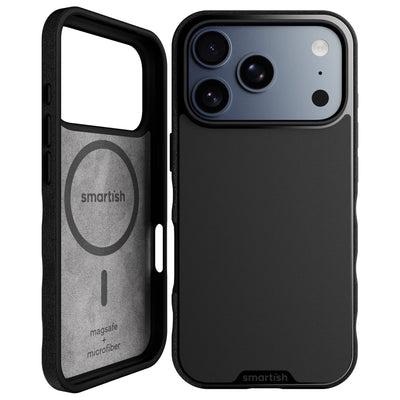
For MagSafe-compatible protection designed for the standard iPhone 15, explore the Gripmunk with MagSafe slim case for iPhone 15.
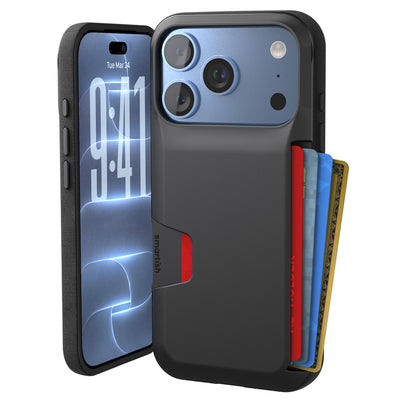
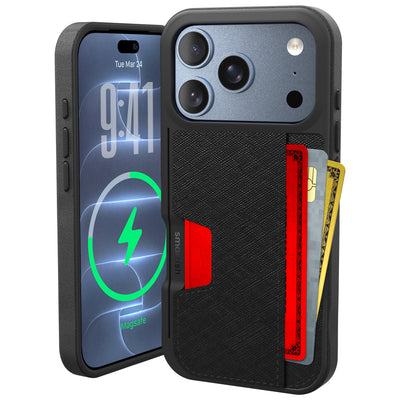
Pair your case with a MagSafe-compatible wallet for convenient everyday carry.
For more context on the magnetic accessory system, read our guide to how MagSafe works.
Which Actions Can You Assign?
Depending on your iOS version, the Action button may offer Silent Mode, Focus, Camera, Flashlight, Voice Memos, Recognize Music, Translate, Magnifier, Controls, Shortcut, Accessibility, and No Action. Pick the one that matches your routine.
Why Choose Shortcut?
Shortcut is the flexible pick. It can launch a multi-step workflow, such as opening a favorite app, starting a timer, or running a smart-home command. Create or select the Shortcut separately, then assign it under Settings > Action Button. The Action button guidance explains how this control works in an interface.
What If the Action Button Doesn’t Work?
If the button doesn’t respond, press and hold it, check the selected action in Settings, and test it without the case. If it works uncovered, the case may not be lining up with the button correctly.
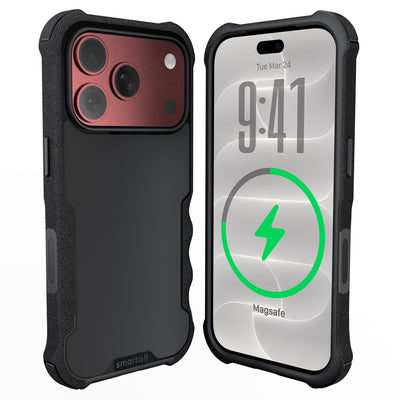
A case designed for the iPhone 15 should leave the button easy to reach while adding protection for active days, commutes, and weekend adventures. Smartish cases use precise cutouts, covered buttons, air-pocket corners, raised screen edges, and a raised camera ring. Browse the Smartish phone case collection or see a quick overview of the device in iPhone 15 Pro.
References
- Support documentation: Action button
- Human Interface Guidelines: Action button
- Wikipedia: iPhone 15 Pro
Frequently Asked Questions
Do the iPhone 15 have an action button?
The Action button is only on the iPhone 15 Pro and iPhone 15 Pro Max, not the standard iPhone 15 or iPhone 15 Plus.
Where is the iPhone action button?
It sits on the upper-left edge of the iPhone 15 Pro and Pro Max, where the old mute switch was located.